

- Treat a template as a starting structure. Replace its claims, footage and narration with content that fits your own subject.
- Preview access and permission to use a template are different. Check the membership or entitlement displayed in the client.
- The current template entry offers Super Editor and three composition routes. Choose the route that matches how much timeline control or variation you need.
- Inspect imported assets and storyboard content before assuming the template is ready to produce a finished video.
- Review one complete adapted version before using its structure for further variations.
Use a template to borrow structure, then rebuild the meaning
A video template can provide a useful opening, sequence and visual rhythm. It cannot establish that your product has the same benefits as the reference, that your footage supports its claims or that the result will perform like the example. The work begins with understanding the structure and ends with a video about your own subject.
This tutorial follows browsing, previewing, favoriting, importing and adapting template content. It explains the current entry points and uses a fictional desk-organizer brief to show what should change. For repeated output after the first version is approved, see the batch video editing workflow.
Product behavior is based on a read-only review of the current client implementation and the capability guide. The worked brief is hypothetical. It does not describe a tested customer campaign, a measured conversion improvement or a guarantee that a particular template will produce a successful video.
Check access and prepare your replacement content
Check what your account can preview and use before planning around a specific template. The current implementation gives the free tier a limited preview selection, while full use depends on the appropriate membership level or template entitlement. A favorite is a saved reference, not proof of permission to import or use every item.
As reviewed on 10 October 2026, the free preview limit in the client is ten templates. Membership levels at or above the implemented premium threshold, or the relevant template entitlement, unlock the full-use route. These are implementation details at the review date; rely on the account state and notices shown in your current client.
Prepare the materials that will make the adapted video distinct:
- A specific audience and one useful message.
- Your own product or subject footage, including the action the viewer needs to see.
- Approved factual claims and any necessary qualifications.
- Draft narration or text suited to the reference's broad structure.
- Brand information, names and contact details if the project needs them.
- A decision about a single manual edit or a set of planned variations.
Do not choose a demonstration-heavy template if your available clips only show a static object. You can change the structure, film the missing action or select another reference. Reusing the template's demonstration labels over unrelated footage will leave the main claim unsupported.
Browse, preview and favorite with a clear selection test
Open the template library under Creative Inspiration and narrow the selection by the controls available in your client. The current browser supports keyword search and filters including industry, style and narration-related content, alongside sorting and a favorites view.
- Search for the task. Start with your topic or a structural need, such as a product demonstration, rather than choosing only by an attractive cover.
- Watch the full preview. Note the opening, evidence, transitions and ending. A cover cannot show whether the middle of the video suits your content.
- Inspect the detail. Read the available text and identify what you would need to replace.
- Favorite a short list. Save useful candidates so you can compare them against the same brief.
- Choose by feasibility. Prefer the reference for which you have the footage and facts needed to tell a coherent story.
Use four questions when comparing two references: Does the opening address your viewer's actual problem? Can your footage demonstrate the central action? Can the narration state the benefit accurately? Does the ending ask for an appropriate next step? A reference that meets these tests is more useful than one whose style is appealing but whose story you cannot support.
Preview loading can depend on the network or cached media. An incomplete preview does not establish that the template is broken, but it also gives you less evidence for selection. Wait for a usable preview or choose another candidate instead of judging an unfinished load.
Choose the import route that fits your editing task
The current Use Template menu offers four destinations. They represent different ways to continue production, not four guarantees of an identical finished result. Choose the route according to your materials and the degree of control you need.
| Route | Purpose shown in the client | Choose it when |
|---|---|---|
| Super Editor | Open the timeline editor and import script content as storyboard material | You want to inspect and refine an individual sequence on the timeline. |
| Basic composition | Replace material shot by shot and produce variations | You have a clear shot structure and suitable replacement clips. |
| Advanced composition | Combine storyboard content with intelligent material matching | You want a supported matching workflow, while still reviewing whether the selected footage fits. |
| Professional composition | Use multiple material pools for a composition workflow | You have organized alternative material groups and need a more structured variation plan. |
The template detail allows narration text to be edited before use. Review that draft for your subject, then choose the destination. In the Super Editor route, confirm project-format settings before continuing into the prepared draft. The import process prepares template assets and carries content into the chosen destination. Inspect the imported result before editing: which media arrived, which storyboard or text content appeared, and which parts still refer to the original subject? Missing or unsuitable material should be replaced before you judge the final sequence. A composition import can warn that material preparation failed and continue with script content only. Treat that warning as a partial import: supply the needed footage rather than assuming the reference media arrived. Transitions inferred from a template style are also not a promise of exact reproduction of its original edit.
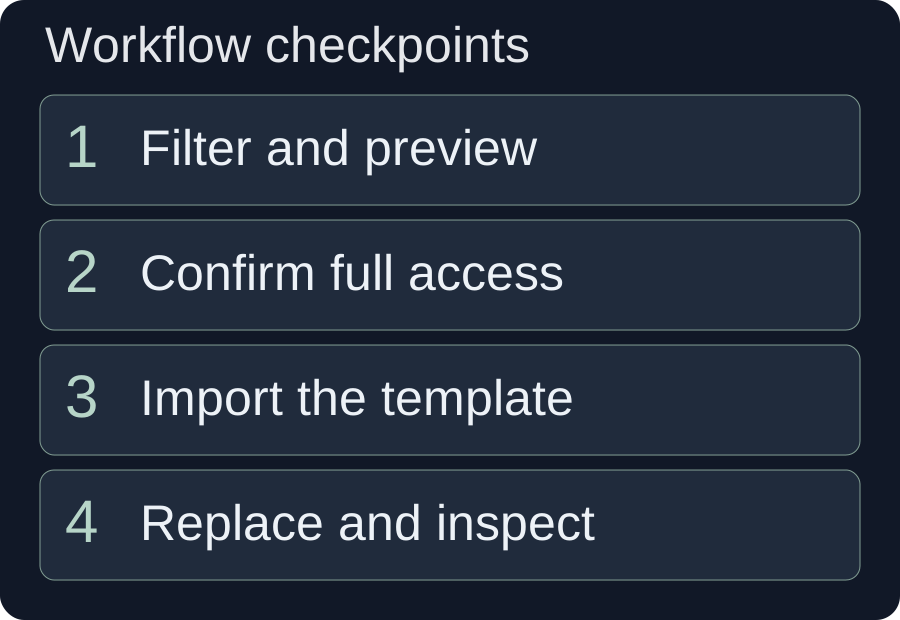
For the first adapted video, Super Editor provides a direct way to review the timeline. Open the template detail, choose the route, wait for the import operation and inspect its reported result. A progress message is not the same as a completed import, and a completed import is not the same as an approved video.
If your next step is to match narration with your own library footage, the video assembly guide explains the importance of material coverage. A matching system cannot retrieve a demonstration that is absent from the library.
Worked example: adapt a compact-desk product explainer
This fictional brief shows what to keep and what to replace. Assume a reference uses an opening problem, a demonstration and a summary. Your subject is a simple desk organizer, and your own footage shows placing a notebook, pens and a charging cable in separate areas. No measured productivity or space-saving claim is available.
Hypothetical audience: someone arranging a small work surface. Message: group regularly used objects so their locations are easy to see. Desired result: one clear demonstration video using your footage and approved wording. The brief does not promise a specific output length or performance result.
| Reference function | Your replacement | Acceptance check |
|---|---|---|
| Opening problem | “Can't find the pen you just put down?” | The opening footage actually shows the scattered objects and does not imply a tested product benefit. |
| Demonstration | Place the notebook, pens and cable in visible groups | The viewer can see where each item goes without a caption covering the action. |
| Benefit statement | “Give each daily item a place you can see.” | The wording describes the demonstrated arrangement rather than an unsupported efficiency claim. |
| Summary | “Group it. Place it. Keep it within reach.” | Each short instruction corresponds to an action shown in the edit. |
Rewrite before replacing shots
Start by removing every product-specific claim from the reference. Write the new narration in plain sentences: “Start with the things you reach for every day. Put the notebook where it will not cover the pens. Route the charging cable so you can still reach its end. Check the arrangement from your normal seated position.” This sample is a proposed script for the hypothetical brief, not evidence of a product feature or a measured improvement.
Match one action to each important sentence
Use the notebook placement for the second sentence and the cable demonstration for the third. If you have no seated-view shot for the final check, either film it or revise that sentence. Do not substitute a generic close-up just because its color suits the template.
Adjust timing to the new material
Your demonstration may take longer than the reference action. Extend or reorganize the relevant section rather than accelerating it until the viewer cannot follow. If the opening now feels long, shorten its wording before cutting the evidence that makes the demonstration understandable.
Review the result against the brief: can a new viewer identify the three groups and understand how the arrangement was made? If the edit looks like the reference but fails that task, the adaptation is incomplete.
Revise text, footage, audio and graphics together
A template adaptation changes several related layers. Replacing the footage without revising the narration can leave a false claim; replacing the narration without retiming the shots can hide the action it describes.
Text and shot structure
Check titles, storyboard notes and on-screen labels for names or phrases left from the reference. Keep a short message that the new footage supports. If you need a different shot structure entirely, use the reference as inspiration and rebuild the sequence instead of forcing your story into it.
Voice and sound
Listen for original product names, inconsistent narrator roles and transitions that were designed for another script. Preview the whole sequence after voice changes, because a new reading can shift the timing of every later visual cue. Make intentional decisions about music and original sound rather than assuming the imported balance suits the demonstration.
Graphic emphasis and captions
Keep essential demonstrations and text legible at the intended delivery size. A busy background or decorative label can compete with the object being shown. W3C's contrast guidance explains the role of text-background contrast; use it as a design reference while reviewing the changing footage.
Automatic or imported captions still need accuracy checks. W3C's caption guidance emphasizes reviewing automatically generated text. Check names, negation and the correspondence between words and audio, rather than accepting a polished caption style as evidence of correctness.
If a title or explanation card needs a different layout, follow the motion graphics tutorial for timing and layering. A reusable style is useful only if the information remains readable.
Know when another workflow is a better fit
Use the template library when an existing reference provides a useful starting structure. Use a different workflow when your main task is to understand a reference you supplied, organize new footage or produce variations from an already approved plan.
| Task | Better starting point | Why |
|---|---|---|
| Browse existing structured references | Template library | You can preview candidates and import a suitable starting point. |
| Understand the structure of a specific supplied video | Reference analysis or script deconstruction | The task starts with your reference, not a catalog selection. |
| Split your own footage into reusable shots | Video splitting | You need clip boundaries, not a template story. |
| Create planned variants from a stable structure | Batch composition or editing | The first sequence is already approved and materials are organized by role. |
These workflows can follow one another. For example, use the shot splitting workflow to prepare your demonstration clips, then adapt the template. Avoid importing multiple references before deciding what the actual video needs to explain.
Troubleshoot access, import and adaptation problems
Diagnose the stage that failed before repeating the whole workflow. Access, media preparation and editorial suitability require different fixes.
| Symptom | Check | Fix |
|---|---|---|
| The reference is visible but Use Template asks for an upgrade | Current membership or template entitlement | Review the access notice. Preview visibility does not guarantee full use. |
| The preview is incomplete | Loading state and connection | Wait for a usable preview or retry as indicated before judging the template. |
| Imported assets are missing or incomplete | Import progress and reported errors | Confirm preparation completed and inspect the destination before continuing. |
| The new video still names the reference subject | Narration, titles, labels and storyboard text | Replace all subject-specific wording, then replay the whole sequence. |
| The demonstration no longer matches the script | Sentence-to-shot correspondence | Use the correct clip, revise the sentence or film the missing action. |
| Many variations contain the same mistake | The shared approved structure | Fix the master plan and review one corrected version before further output. |
Do not solve an evidence problem with a more dramatic headline. If a template assumes a before-and-after result you cannot substantiate, choose a different structure or present the process without that claim.
Approve the adapted video against your own brief
The final review should ask whether the video communicates your message, not how closely it resembles the template. Watch the saved or exported result with sound, without sound and at the intended small viewing size.
- The opening addresses the actual audience and subject.
- Every factual claim is supported or removed.
- The important action is visible when the narration describes it.
- No reference names, branding or irrelevant details remain unintentionally.
- Captions and graphic elements are readable without hiding the demonstration.
- The exported file plays as expected from its saved location.
W3C's accessible media overview provides a broader checklist for the information different viewers may need. Once one complete version meets your brief, record the reusable structure and the parts that must change in each future variation. That is a more reliable starting point than copying the reference again.
Frequently asked questions
Are all video templates free to use?
No. Preview and use permissions depend on the membership or template entitlement shown in the client. The implementation reviewed for this article has a limited free preview selection; visibility in that selection does not guarantee full import access.
Does importing a template create a finished video automatically?
Import carries assets and content into a chosen editing or composition workflow. You still need to inspect the result, replace subject-specific content, check matching footage and narration, and review the saved video.
Can I keep the reference narration when I change the product?
Only keep wording that remains accurate and appropriate for your new subject. Product claims, names and demonstrations must be reviewed together. A similar visual style does not establish that the same claim applies to your product.
Based on read-only review of src/renderer/src/pages/hotTemplates/index.jsx on 10 October 2026, including access checks, preview/favorites and four import destinations. The client was not run and no successful import or performance result is claimed. The desk-organizer brief and script are hypothetical. Verify current access in the client. Official external sources were read on the same date.