

- A reference supplies context for the remix; your footage still needs to contain the actions and products described by the narration.
- Quick mode emphasizes a guided script-and-title workflow. Professional mode exposes narration and composition choices.
- Supplied narration is shared across the batch. Generating several outputs does not automatically create several editorially distinct messages.
- Check script meaning, title placement, footage matches, audio and captions separately before accepting an output.
What reference-led remixing actually does
AI Video Remix combines a reference video, a pool of source footage and a narration plan to produce video variants. The useful result is a set of candidates to review against a brief. A technically completed video can still show the wrong product, overstate a benefit or use a shot that does not explain the spoken line.
This tutorial follows the desktop client's current remix workflow, including its input checks and title review checkpoint. It explains how to prepare the footage, choose between narration modes and diagnose a weak output. The hypothetical campaign later in the article illustrates editorial decisions, not measured results from a customer deployment.
Choose the entry according to the starting material. Remix is appropriate when you have a reference and footage to substitute into a narrated sequence. Batch video editing is better suited to combinations of predefined shot groups. AI video assembly starts from copy or a reference and uses a library to arrange an editable project. These workflows overlap, but their preparation and review tasks differ.
A reference is also a creative constraint. Decide whether you want its topic structure, pace, narration or particular images before adding it. If the aim is only to borrow the broad order of an explanation, carrying its original voice track into the output may preserve statements that do not fit your product. Make that decision before generation.
Prepare a usable reference and a varied footage pool
Prepare enough readable, relevant material before changing output settings. The current entry requires at least three remix materials, at least one minute of material in total and no more than five minutes per individual material. These are eligibility checks, not a guarantee that the pool covers every narration line.
- Open AI Video Remix and add one reference video. Let its duration load before proceeding.
- Add your remix footage using the local-file, folder or asset-library entry shown in the client.
- Check the selected-file count, aggregate duration and any file-level warnings. Re-read file information if a duration has failed to load.
- Review the actual shots. Include meaningful differences such as product detail, a person using it and the completed result, rather than several near-identical recordings.
Local remix inputs can be split, understood and saved into the library by the workflow. Previously understood library assets can be reused. If an existing collection is hard to search, first follow the asset organization and semantic-search workflow; adding more footage without knowing its contents usually makes review harder.
Keep the reference and replacement footage conceptually separate. Professional settings include a choice to use the reference's images as remix material. Enable that only when those images belong in the finished message. A reference containing a different product should not accidentally become evidence for your own product's features.
Check source framing too. A landscape recording may contain a good action that becomes unusable when composed vertically. Preview the important part of each shot, including labels and hands, rather than judging suitability from the thumbnail alone.
Choose a mode and an intentional narration source
Use quick mode for the guided path from inputs to generated scripts and titles. Use professional mode when you need to control the narration source and composition settings. The current professional interface offers four narration modes, and the differences affect what can change between outputs.
| Narration source | Useful when | What to review |
|---|---|---|
| Automatic text | You want a generated draft informed by the reference and creative brief. | Unsupported claims, terminology and whether any enabled rewriting changes meaning. |
| Supplied text | The wording is already approved and you need it synthesized. | Pronunciation, sentence pacing and timing. The batch uses the supplied copy. |
| Reference audio | The original soundtrack is suitable for the new images. | Inherited background music and statements that may describe the reference rather than your material. |
| Uploaded audio | You already have a recorded voiceover. | Recording quality, transcription accuracy and whether the footage covers the complete narration. |
Supplied text can be pasted or uploaded as TXT. The current input accepts up to 20,000 characters; the TXT upload is limited to 100 KB. A long accepted script still needs an appropriate delivery length. Reduce redundant wording before trying to compress it into a short video.
Uploaded narration currently accepts MP3, WAV, M4A, AAC, FLAC and OGG, with a five-minute and 100 MB limit. The batch shares that recording and derives captions and footage matches without synthesizing a replacement voice. Check the recording itself before assuming a visual retry will solve an audio problem.
When using automatic text, write a brief with a subject, an intended viewer and prohibited claims. For example: “Explain the adjustable grind setting for a first-time home user. Use only the supplied product footage. Do not claim quieter operation or a faster process.” This guides interpretation without asking the system to invent proof.
If you select the reference audio, remember that its existing music remains part of the track. Adding new background music can produce an unwanted overlap. Listen to the reference first and choose the music setting accordingly.
Set composition and duration around the message
Choose output settings to preserve the narration and the important visual information. A target length is a request within the workflow's timing rules, not permission to discard part of an approved voiceover.
The current duration input accepts three to 300 seconds, while a blank duration follows the reference or the full supplied narration according to the mode. The interface states that narration may be accelerated up to 1.5 times and that an output can extend when necessary to retain complete content. If a requested short duration produces a longer candidate, inspect the script length instead of repeatedly submitting the same incompatible inputs.
Professional composition choices include portrait at 1080 × 1920 or landscape at 1920 × 1080, original-picture treatment or light color adjustment, and hard cuts or a 0.3-second fade. Choose hard cuts when the action sequence needs a clean boundary. A fade may soften a transition, but it can also reduce the clarity of an instructional gesture.
The minimum shot duration setting controls how briefly a selected segment may appear. Very short segments can hide the action the sentence is trying to explain. Longer segments may improve comprehension but limit the variety available within the narration. Evaluate the product action, not an assumed universal ideal pace.
Professional mode also offers random replacement when matched material is insufficient. This can help a workflow finish, but it changes the editorial risk: a visually acceptable substitute may be unrelated to the current claim. If factual footage alignment matters, leave that option off or treat every fallback shot as a required review item.
Set the output count conservatively while validating a new pool. The current quantity range is one to 100. A larger accepted count does not establish that all candidates will be distinct or useful. First examine whether the selected narration and available footage can produce a meaningful variation at all.
Review scripts and titles before accepting the videos
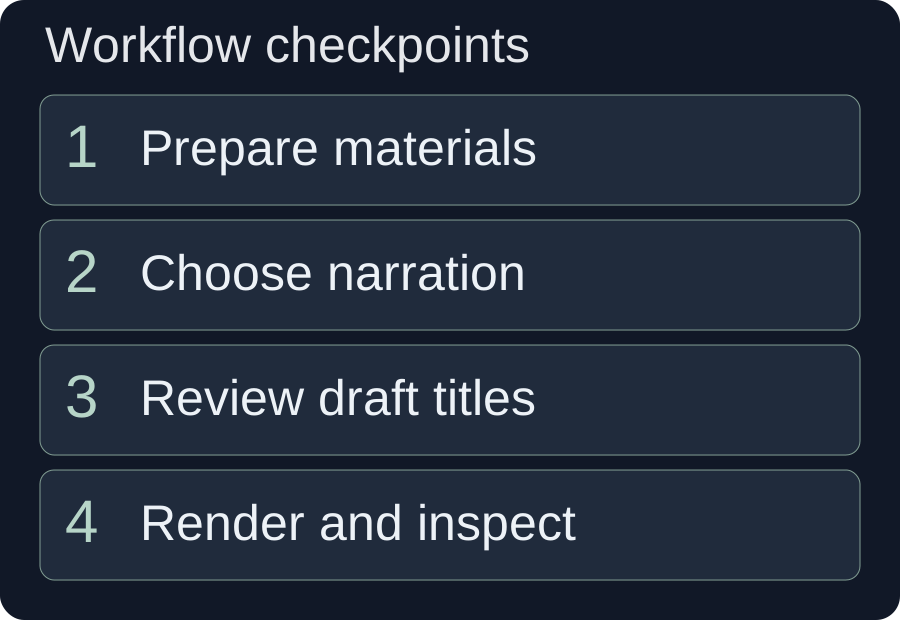
Use the script-and-title checkpoint to correct meaning before it becomes an exported video. In quick mode, and when the relevant title option is enabled, the action generates scripts and titles for review before continuing to video production.
Open each candidate's title editor. The title text, font, size, alignment, style, position and display interval can be adjusted. Titles initially appear for the first three seconds, but the interval is editable. The title preview also shows the associated narration text as read-only, making it possible to check whether the opening label matches what the speaker actually says.
Editing a title does not rewrite the voiceover. If the narration promises “automatic cleaning” while the footage only shows manual brushing, changing the title to “easy maintenance” has not solved the central problem. Correct the message through the appropriate script or input workflow before approving the video.
Next, inspect task progress and the individual candidates. The current workflow places outputs under the asset library's finished-video grouping for AI Video Remix. Find the actual output and play it from beginning to end; a success status confirms completion, not editorial approval.
Captions deserve their own pass. W3C's caption guidance explains that automatic captions need accuracy review. Check names, numbers and negative words against the audio, then look for a new subtitle line colliding with an old burned-in subtitle or with the opening title.
Original-subtitle treatment has separate modes and input requirements. The current interface distinguishes cover, Base and Pro processing; it also warns that subtitle processing can be charged separately. A cover hides a region rather than reconstructing the original background. Inspect the selected source warnings and the result instead of assuming all three choices are interchangeable.
Hypothetical example: a coffee grinder campaign
Hypothetical planning example: A small equipment team wants two portrait candidates explaining an adjustable coffee grinder. It has a reference that opens with a brewing problem and then demonstrates a setting change. Its own material consists of four recordings totaling more than one minute, with every individual recording shorter than five minutes.
The team prepares a product close-up, a hand moving the adjustment dial, grounds falling into a container and a completed brewing setup. Its approved copy says: “Start with the setting recommended for your brew method. Adjust the dial, grind a small amount and inspect the result before preparing your drink.” This is an example script, not a product specification or a tested claim.
The editor chooses professional mode with supplied text, a portrait output and hard cuts. The reference images are excluded because the reference shows another model. Random replacement is disabled because every spoken action should have a corresponding shot. The target duration is left blank while the team checks the synthesized narration's natural length.
| Spoken beat | Planned image | Review decision |
|---|---|---|
| Choose a starting setting. | Close-up of the adjustment markings. | Reject a crop that hides the relevant marking. |
| Adjust the dial. | Hand turning the dial. | Reject a shot that shows the hopper instead of the adjustment action. |
| Inspect the grounds. | Grounds in the container. | Keep only footage where the result is visibly inspectable. |
| Prepare your drink. | Completed brewing setup. | Check that the setup belongs to the same demonstration. |
Suppose one candidate uses a visually attractive countertop shot during “adjust the dial.” The team rejects that match even though the colors and crop look good. It adds clearer adjustment footage or revises the brief, then checks the next candidate against the same beat table. This is a proposed decision process; no generated output or campaign result is claimed here.
The second candidate is useful only if its shot choices offer an intentional alternative. Two files with the same wording and nearly the same images should not be counted as two different creative hypotheses merely because they have different filenames.
Fix failures at the stage that caused them
Diagnose the input or decision behind the problem before increasing the batch size. Re-running an unchanged request can reproduce the same missing footage or incompatible narration length.
- Generation cannot start: Check material count, total duration, individual duration, readable file information and highlighted narration fields. Resolve the exact warning instead of adding an arbitrary file.
- The footage is unrelated to the line: Identify the missing action, add appropriate material and review the random-replacement setting. A larger pool of irrelevant footage is not a solution.
- The output exceeds the target: Compare the complete narration with the requested duration. Shorten the approved script or allow more time; do not assume the tool should cut essential information.
- The opening title is wrong: Review the title separately from narration. Correct the underlying claim if both disagree with the source material.
- Subtitle processing fails: Inspect file-level errors for the selected mode and check its current duration and resolution limits in the client.
- The voice is hard to hear: Listen for music already embedded in reference audio, then reduce or remove added music before retrying.
Transcoding and composition also affect what reaches the final file. FFmpeg's documentation distinguishes re-encoding from copying compressed streams, a useful reminder that an exported derivative is not your original source recording. Keep source media available for correction rather than repeatedly working from already compressed outputs.
For a finished candidate, complete three playback passes: meaning and shot matches, audio and captions, then framing and titles. These are suggested review passes, not a claim about the client's automatic validation. Open the product guide when you need the adjacent tools, or continue to the timeline assistant workflow when the project needs more deliberate refinement.
The practical goal is a defensible set of variants: each video should say what you intended, show material that supports it and meet the viewing format. Keep the accepted brief and review notes with the campaign so the next batch starts from resolved choices.
Frequently asked questions
Does a remix generate brand-new footage?
This workflow matches and composes supplied or library footage with a reference and narration. Do not assume a missing product action will be generated as new footage; add suitable source material or revise the message.
Will supplied narration change across the batch?
Supplied text, uploaded audio and the reference-audio modes share that narration across the batch. Automatic-text options have their own rewriting choices. Review the selected mode before treating output count as a count of different messages.
Why can a completed remix still be unsuitable?
Completion does not validate the product identity, the truth of a statement, shot-to-narration alignment or subtitle accuracy. Play every candidate and check these separately before accepting it.
Prepared on 10 October 2026 from a read-only audit of the current desktop client's remix entry and the cited official sources. The client was not launched for an end-to-end test. Interface labels, limits, account entitlements and fees can change; follow the installed client's validation. The campaign and all its settings are explicitly hypothetical. No customer outcomes or generation-speed measurements are claimed.