
Motion Graphics in AIMIX: Titles, Quotes and Explainer Cards
Editor
Published

- MG creates animated graphic elements for an existing edit, such as titles, quotes, lower thirds and explanation cards.
- Preview and customize a preset before placing it on the timeline; an AI rendering task must complete before its result can be used.
- Approve the words and their screen time together. A short animation can still be unreadable if most of its duration is spent entering or leaving.
- Check the graphic against the speaker, source footage and subtitles at the intended viewing size before exporting.
Add a visual point to an edit, not a second script
Motion graphics help a viewer recognize a title, remember a phrase or compare two ideas while the video continues. In the desktop editor, MG is a graphic layer within a project. It does not replace the footage, narration, shot selection or final review needed for a complete video.
This tutorial shows how to plan and place title cards, quote cards and explanation graphics. It starts with a usable edit and ends with a checklist for readable, correctly timed elements. If the spoken edit still contains repeated takes or unfinished sentences, finish the talking-head rough cut first. Graphics attached to an unstable edit are harder to keep in sync.
The workflow below is based on a read-only review of the current client implementation and the product capability guide. The worked example is hypothetical, not a recorded product test. Available presets, fields and AI tools depend on what your client shows.
Choose the graphic that matches the viewer's task
Choose an MG element by the information it needs to communicate. A title names the topic, a lower third identifies a speaker, a quote preserves exact wording, and a diagram explains a relationship. Adding animation without a clear information role makes the frame busier without making the point clearer.
| Element | Useful job | Review question |
|---|---|---|
| Title card | Introduce the topic or a new section | Can the viewer name the topic before the title disappears? |
| Quote card | Highlight an approved sentence | Does the displayed wording match the speaker or source? |
| Lower third | Identify a person or role | Is the identity correct and clear of the captions? |
| Comparison or information card | Explain choices, steps or a relationship | Can the viewer understand the labels without relying only on color? |
The preset panel includes categories such as title cards, data visualization, information graphics, lower thirds, talking-head overlays, text effects and quote cards. A category describes a design purpose; it does not guarantee that every template can present every kind of information.
Subtitles perform a different job. They represent speech and other needed audio information, while an MG title or quote selects an editorial emphasis. Keep both when the video needs both. Full-video assembly also differs: assembling footage from copy and an asset library organizes the main edit; MG adds graphic elements to that edit.
Prepare the edit and a small graphic brief
Prepare approved text, a stable cue in the narration and a clear part of the frame before opening the preset browser. These decisions give you a way to judge the result rather than repeatedly changing styles.
- Identify the message. Write the one idea the graphic should communicate. Remove wording that belongs in the spoken explanation instead.
- Approve the exact text. Check names, punctuation, numbers and quote attribution. Do not turn a paraphrase into a quotation by adding quotation marks.
- Choose its cue. Note the sentence or action that makes the graphic relevant. Use a timeline position after checking the actual edit.
- Reserve space. Identify the speaker's face, the object being demonstrated and the subtitle area. Decide which area can hold the graphic.
- Define the exit. State which next idea needs the screen clear. A graphic should not linger after its context has changed.
For example, a brief could read: “Show the title ‘A clearer desk, one change at a time’ during the opening explanation. Use a compact design above the caption area. Keep the demonstrated cable route visible. Remove the title before the close-up begins.” This is more useful than “make it impressive,” because you can check each requirement in playback.
Preview a preset, edit its fields and place it
The preset route gives you a defined design to customize. In Super Editor, open the MG panel, search or choose a category, and click a cover to preview and modify its content. The panel also supports dragging a template to the timeline.
Inspect the fields before committing
The template editor exposes fields according to the selected template. These can include text, numbers, choices, colors and switches; chart templates can expose structured chart data. Change only fields whose purpose you understand, then inspect the refreshed preview. A template designed for a short name may not suit a long paragraph even if its text field accepts it.
The current duration control accepts 0.1 to 60 seconds. That is a control range, not a recommended reading duration. Choose a length from the narration and the amount of information. If a chart field reports an error or the preview is not ready, fix that state before using the element. The add-to-timeline action depends on a valid preview and duration.
Check the actual project placement
After adding the element, find its clip on the timeline and play from before its start through its end. Inspect its position, scale, visible duration and relationship to the surrounding clips. A preview in an isolated editor cannot show every collision with a moving subject or subtitles in the project.
If you need an AI-created design, describe the content and constraints in a supported MG workflow. Wait for the rendering task to finish, inspect the completed asset, then place it. Rendering a graphic does not by itself place it on the timeline. An unfinished task is not a usable overlay.
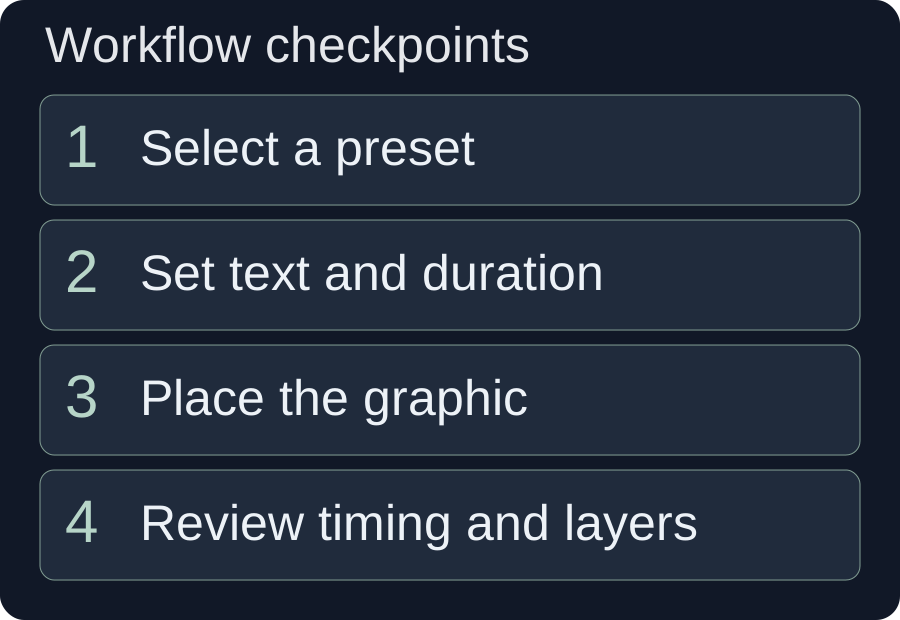
Worked example: package a 45-second desk explainer
The following fictional brief shows how to make three different graphics serve one explanation. The times are editorial planning choices for this example, not measured output timings or recommended defaults for every video.
Hypothetical input: a 45-second vertical video shows a presenter organizing a desk, a close-up of loose cables and a demonstration of routing those cables behind the desk. The approved narration explains the process without claiming a measured productivity improvement. The goal is to help viewers distinguish clearing objects, routing cables and leaving frequently used items accessible.
| Planning cue | Graphic and exact wording | Decision and checkpoint |
|---|---|---|
| Opening, approximately 1–5 seconds | Title: “A clearer desk, one change at a time” | Use a title preset. Confirm it clears the presenter's face and disappears before the first close-up. |
| Cable explanation, approximately 15–22 seconds | Quote: “Keep the route visible while you arrange it.” | Use a quote card only if the narrator says this exact sentence. The cable route must remain visible. |
| Final explanation, approximately 32–40 seconds | Decision card: “Clear the surface / Route the cables / Keep daily tools close” | Choose an information layout with three readable labels. Check each label against the action shown. |
Build the title first
Find a title-card preset with enough room for the approved phrase. Enter the text, choose a duration appropriate to the opening and preview. If the phrase breaks awkwardly, shorten it to “A clearer desk” rather than squeezing a long line into a smaller type size. Place it at the opening cue and check that its exit does not overlap the first demonstration.
Use the quote as evidence, not decoration
Confirm the narration contains the exact quoted sentence. Place the quote while that idea is being explained, not over a later shot with a different instruction. If a card hides the cable route, try a compact layout or a different position. If neither works, use a plain text emphasis or omit the card. Showing the process matters more than keeping a favorite preset.
Keep the decision card selective
Give the final card three short labels instead of repeating the whole script. Watch with the sound off: can you identify the three actions? Then watch with the sound on: do the labels appear when those actions are explained? If the viewer must read the card and track a complicated hand movement at the same time, move the card to a less demanding shot.
After these checks, record the final cue positions in the project notes. If you change the voiceover or move the close-up later, return to these three cues and recheck their meaning.
Balance reading time, contrast and layer order
The useful reading window is the time during which the complete message is visible and steady. Entrance and exit animation consume part of a clip's duration. Preview the full sequence before deciding that a nominally long clip gives enough time to read.
Timing and wording work together
Shorten a sentence before shrinking its type. Keep a quote exact, but choose a shorter supported quote if the full wording is too long for the available cue. For a comparison, keep the two labels parallel so the viewer compares their meaning rather than decoding different sentence structures. Do not repeatedly animate a label that needs to stay visible during an explanation.
Review contrast across the moving footage
A white label may be clear over a dark opening frame and disappear when the camera moves to a bright wall. Check the whole interval. A solid or sufficiently opaque backing can make text more stable against changing footage. W3C's contrast guidance provides a useful reference: its web-content thresholds are 4.5:1 for ordinary text and 3:1 for qualifying large text. Treat these as a design reference, not proof that your exported video has passed an accessibility audit.
Use labels, shapes or patterns alongside color when the graphic encodes a distinction. W3C's use-of-color guidance explains why color alone should not carry information. For the desk example, keep the three action names visible rather than using three unlabeled colored boxes.
Protect captions and the main subject
Check the composite frame at the intended delivery size. Reserve separate space for the speaker, demonstration and captions. Do not assume a template's default position suits a vertical crop or another subtitle style. If you need to trim long footage before deciding where graphics belong, use the long-video selection workflow first.
Diagnose common MG problems by what you can see
Identify whether the problem belongs to the graphic, its placement or the underlying edit before regenerating anything. A correct asset at the wrong cue requires a timeline change; a text error requires a content change.
| Symptom | Likely check | Practical fix |
|---|---|---|
| The generated element is not visible | Task completion and clip placement | Confirm the task completed and the asset was placed. Inspect the clip's interval, visibility and layer relationship. |
| Words are clipped or hard to read | Text length and template capacity | Shorten approved wording or choose a roomier template. Preview the final line breaks. |
| The card contradicts the shot | Narration and action cue | Move it to the relevant explanation or rewrite its labels to match the footage. |
| The graphic hides the subject or captions | Composite frame throughout the interval | Adjust position, size or timing; switch layout if there is no clear space. |
| An update is rejected | Locked track or changed clip | Inspect the lock and selected clip. Recheck placement before applying the update to an editable MG clip. |
| An updated graphic is shorter than a previous trim | New animation length versus clip trim | Adjust the trim so it fits the new content, then review both ends of the clip. |
| A chart fails to preview | Chart field validation | Correct the reported data issue before adding the graphic. Never replace missing data with invented values. |
For unexpected backgrounds or transparency, inspect the completed asset and its intended delivery format before using it as an overlay. Do not assume every output can be placed through the same route. If an AI task fails, read its reported status; repeatedly submitting the same brief does not establish that the result is usable.
Review the finished sequence before export
Approve MG in the complete video, with audio and subtitles enabled. Review the start, stable reading interval and end of every graphic. The final decision is whether the viewer can understand the message while still following the main action.
- Check every word, identity, number and attribution against the approved source.
- Watch at the intended small viewing size and inspect bright as well as dark frames.
- Confirm the graphic appears with the correct idea and leaves before the next one.
- Check that subtitles, demonstrations and faces remain visible.
- Play the exported file to confirm the graphic and audio appear as intended.
W3C's accessible media guidance distinguishes captions, transcripts and visual description according to the information people need. A visually polished card does not replace those needs. Finish one representative sequence, then reuse the same review questions for the rest of the project.
Frequently asked questions
Does MG generate an entire video?
MG supplies animated graphic elements inside a video project. You still need the main footage or other visual material, narration where appropriate, timeline placement and final review. Video assembly and graphic packaging are different tasks.
Can a quote card replace subtitles?
A quote card emphasizes selected wording; subtitles convey speech and relevant audio information. Use the quote to highlight a point and review captions separately rather than assuming the card covers the complete spoken content.
Why did the AI finish rendering but nothing appear on the timeline?
Rendering and placement are separate operations. Inspect the completed asset and add it through a supported route, then check its clip, cue and layer in the project. A completed task alone does not prove the element was placed.
Reviewed against current client source on 10 October 2026: MgPresetPanel.jsx, MgTemplateEditor.jsx and useAgentEditing.js. The client was not operated for this article, and no generation, export or reading-time result is claimed. The desk example and its timings are hypothetical editorial planning choices. External references were read on the same date.