
Batch Video Editing: A Practical Guide to Product Variations
Author
Date published

Original promotional cover retained. Its progress percentages and video queue are illustration values, not a recorded result from this tutorial. Labels are in Chinese.
Batch video editing works when a repeatable structure meets footage that can be exchanged without changing the meaning. The difficult part is defining those exchanges: a different opening can alter the promise, a longer narration can outlast the demonstration, and a similar-looking product can be the wrong model. This guide takes one product-video brief from planning through a pilot edit, batch review and file handoff. It explains what to prepare, which combinations to reject and how to trace a problem to the shared element that caused it.
Key takeaways
- Use Basic Composition for an ordered sequence of shot groups; Automatic Mixing starts from a footage pool and has different duration controls.
- A candidate is interchangeable only when its product identity, action and timing remain accurate under the same narration.
- Match each script to its actual audio and captions, then inspect the risky substitutions before expanding the batch.
- Review every exported file and retain a version record; production variations alone do not establish campaign performance.
What batch video editing changes, and what it needs from you
Batch editing combines prepared footage, a defined sequence and content variations. It is useful when several videos share the same communication goal but need different openings, demonstrations or endings. Start with the batch editing overview for the feature’s place in the workflow.
A batch is more useful when every version has an identifiable editorial difference. Changing a background shot may give you another file, but it does not automatically give you a different message. Decide whether you are producing alternatives for one audience, adapting the same explanation for different uses, or comparing a specific creative choice.
The input should include usable clips, a script for each message and the corresponding audio when narration is required. The output is a set of videos to inspect and deliver. File count is a production measure; it does not establish that a version attracts more viewers or performs better.
Working rule: A shot is interchangeable only if it remains accurate with the words, timing and surrounding shots in that position.
Prepare a brief and an inventory before opening the task
Define one sentence that every version must communicate, then separate the fixed requirements from the choices you intend to vary. This gives you a basis for rejecting a combination before spending time on captions or graphics.
- Fixed: product identity, required demonstration, approved factual wording and destination format.
- Variable: opening question, order of supporting shots, narration approach or closing scene.
- Excluded: discontinued models, footage with the wrong packaging, unrelated stock shots and outdated offers.
Inventory footage by the job it can perform: introduce the product, show an action, explain a detail or establish a use situation. Record the source filename, a useful source range and any restriction. If you only have long recordings, prepare candidates using the video splitting workflow.
Organizing assets before editing is an established practice. Adobe’s overview of media bins explains grouping source files and sequences. You can apply the same organizational principle here without copying another editor’s interface: keep source footage, narration and reviewed versions distinguishable.
Your preparation check is simple: can you find footage for each required point, and can another editor tell which script and audio belong together? Resolve either uncertainty before creating variations.
Choose the composition mode and its actual inputs
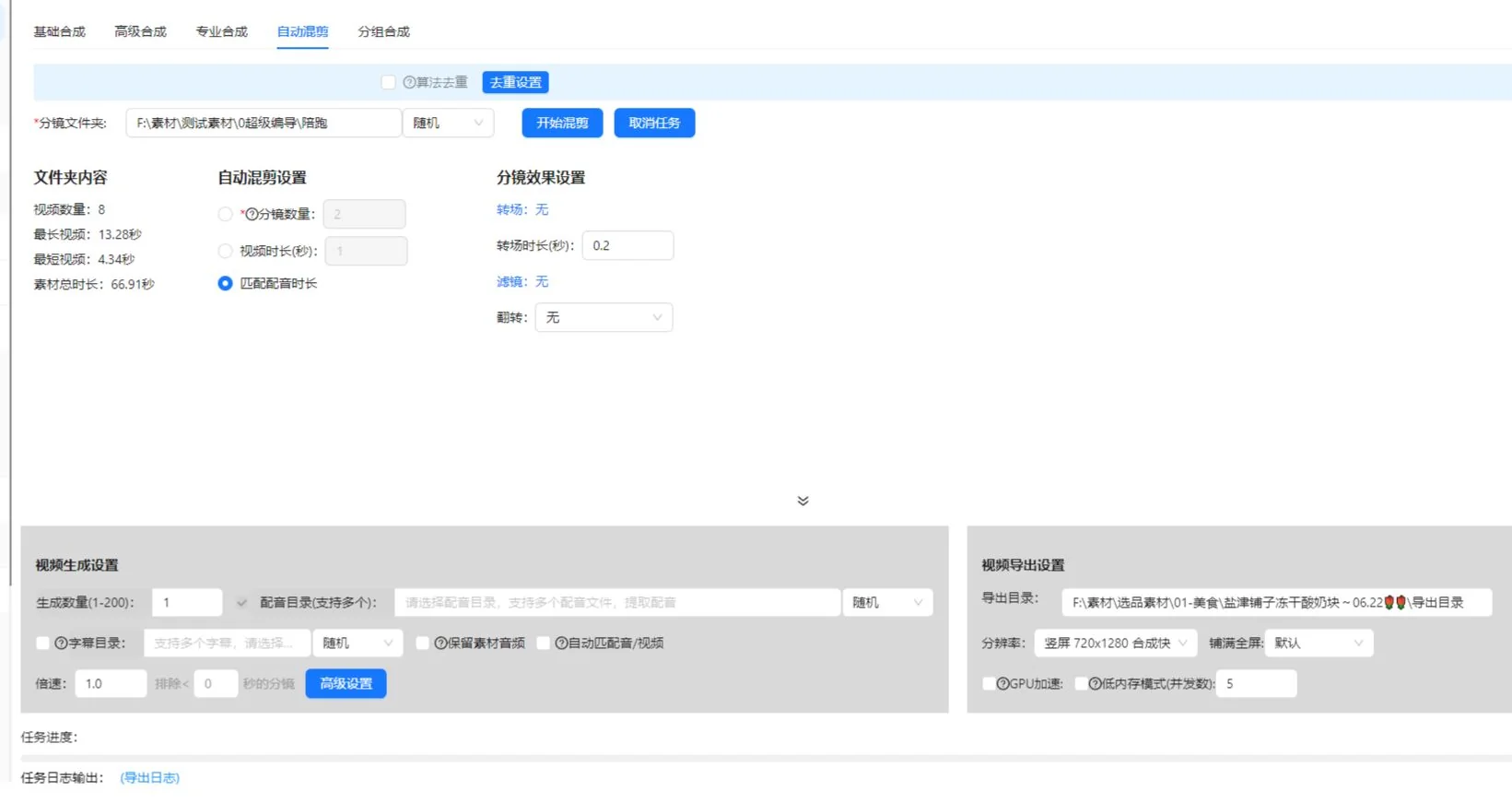
The current composition workspace has Basic, Advanced, Professional and Automatic Mixing tabs. Do not assume they import the same folder structure or accept audio in the same way. The ordered-shot recipe in this guide starts with Basic Composition.
| Starting point | Current controls relevant to this guide | Input check |
|---|---|---|
| Basic Composition | Ordered shot rows, a source folder or library import for each row, generation count, optional narration file and SRT file | Every shot row needs usable material. Set the output directory. |
| Automatic Mixing | A footage folder, shot count, target video duration or narration-duration matching, multiple narration files and an optional SRT directory | Footage must be present directly in the selected first-level folder. Select at least one mixing rule. |
For Basic Composition, prepare one approved narration and its caption file for the pilot. If you need a different script, establish the corresponding audio and caption relationship explicitly in the selected mode or a separate setup. This prevents an editorial variation table from being mistaken for a promise that every tab automatically creates every combination.
Automatic Mixing treats target video duration and narration-duration matching as alternatives. When shot count and narration matching are enabled together, the current interface says it prioritizes the narration duration and may add shots to cover it. Retaining source audio and looping footage are incompatible settings. The shortest audio/video matching option requires narration and can shorten the result, so inspect whether it removes the ending you need.
These controls were checked against the client implementation on October 10, 2026. Confirm their names and availability in your installed version. Current membership settings determine generation limits; this guide does not assign one limit to every account.
Build shot groups around a shared visual purpose
Group alternatives by what they demonstrate, rather than by how similar their thumbnails look. For a sentence about opening a lid, each candidate must show the opening action clearly. A product beauty shot belongs in another group.
Step 1: Define the role of each position
- Read the script sentence for that position.
- Write the visual proof the viewer needs.
- In Basic Composition, add or name the shot row in the required order.
- Assign its footage folder or import the relevant library material. The folder input reads supported material directly in that directory.
- Check whether each candidate’s useful action fits the spoken sentence.
Keep product identity inside the group rules. Two shots can show the same action while using different colors, accessories or generations of the product. That may be acceptable in a comparison video, but it is a mismatch in an edit presenting one specific item.
Step 2: Remove weak substitutes
Play every candidate through the complete action. Reject a clip that starts after the action has begun, ends before it finishes, obscures the mechanism or needs context that the script does not supply. Retain the original source reference so a later editor can recover a wider range.
Verify the group by pairing every candidate with the same narration. If one requires different wording to make sense, move it to another group or treat it as a separate script variation. Do not hide that difference inside an apparently interchangeable set.
Plan a small batch with a clear variation record
The following travel-cup example is a planning exercise, not a recorded task result or campaign case study. Assume the available footage shows the same cup on a desk, its lid opening, its handle and a person drinking from it.
| Version | Opening choice | Shared demonstration | Closing choice | Review question |
|---|---|---|---|---|
| A | Introduce the cup on a desk | Show the lid opening in full | Return to the desk setup | Does the opening establish the product? |
| B | Begin with the lid action | Keep the same action explanation | Use the same desk setup | Does the opening still provide enough context? |
| C | Use the same introduction as A | Keep the same action explanation | Show the cup in ordinary use | Does the ending support the message? |
A and B change the opening. A and C change the closing. These are understandable differences you can record and inspect. If you change the opening, voice, music and ending together, the resulting video may be useful, but it becomes harder to explain what one change contributed.
Write the intended difference beside each version before generating files. A minimal record includes a version ID, script ID, narration filename, chosen shot candidates and the reason for the change. This is an editorial record you maintain; it does not assume an automatic report from the app.
Inspect combinations for dependencies. An ending that says “use it as shown” depends on the earlier demonstration. A caption mentioning one color must match the footage. Where the choices depend on each other, prepare separate compatible sets instead of allowing every combination.
Match scripts, narration and captions before adding decoration
Each script variation needs a verified relationship with its audio and captions. Similar filenames are insufficient: listen to the spoken line and compare it with the approved text.
Step 3: Check the longest and most demanding narration
Identify passages with more words, longer product names or a detailed demonstration. Play those passages against the footage. If narration continues after the useful visual ends, extend the coverage with a relevant shot, adjust the edit or revise the wording. Do not solve the problem by speeding up an action until viewers cannot understand it.
Use the batch voiceover and captions workflow for the related task. Keep a copy of the approved script outside the video so text revisions can be checked against it.
Step 4: Proofread captions as a separate task
Caption review includes speech accuracy, timing and information conveyed through sound. W3C’s guidance on prerecorded captions includes meaningful non-speech information and speaker identification where needed. For this product example, check the product name and whether the lid sound matters to the explanation.
First approve the basic sequence, then add shared music, text or stickers. Otherwise a polished presentation can distract from an incorrect shot or mismatched voice track.
Run a pilot that covers the risky combinations
A pilot should exercise the choices most likely to change meaning, timing or presentation. Watching only the first combination leaves the other substitutions untested.
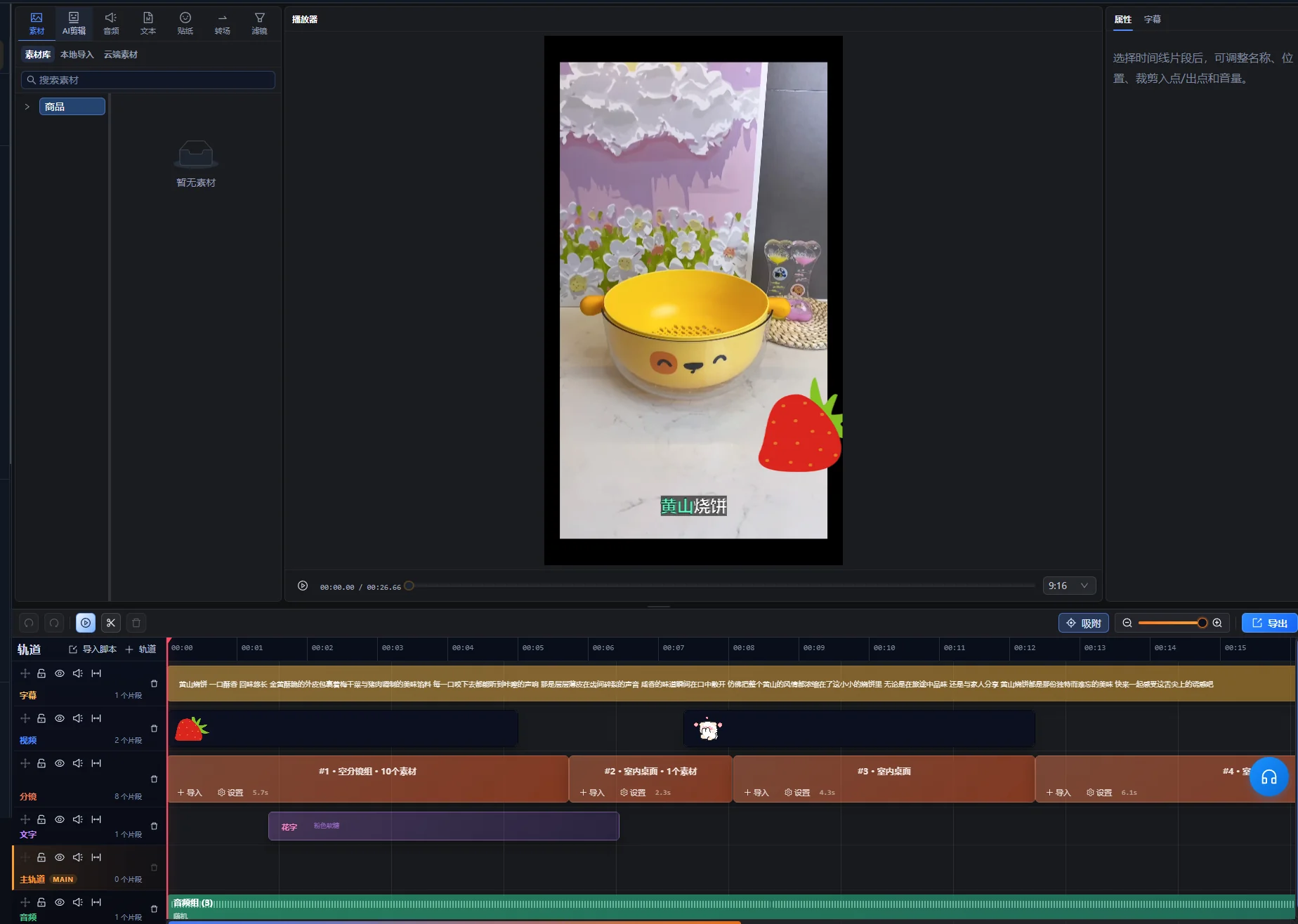
- In Basic Composition, check the order, names and material counts of the shot rows.
- Set a small generation count and choose the output directory.
- If narration or captions are enabled, select the actual narration file and its SRT file.
- Inspect a version with the standard narration and the clearest demonstration.
- For other script setups, inspect the longest narration with the shortest useful demonstration candidate.
- Inspect each opening that changes the context of the following sentence.
- Check candidates with different framing or text placement.
- Fix the shared settings and candidates before expanding the batch.
This is a review strategy, not a claim that the client offers an automatic compatibility test. Use the previews and controls available in your installed version. Task availability, usage costs and limits should be checked in the app when preparing a larger job.
Keep a short defect list: version ID, affected position, observed problem and intended correction. “B starts with an unidentified close-up” is actionable. “B feels wrong” is harder to resolve. After a correction, replay the changed passage and the adjacent transitions.
The pilot is ready when the selected versions meet the brief, the shared audio and caption relationships work, and every remaining candidate has a clear purpose. It still does not replace review of each finished video.
Troubleshoot repeated and isolated batch problems
Start by deciding whether the defect affects several versions or one specific combination. Repeated problems suggest a shared element; isolated problems suggest a candidate or dependency that the group rules missed.
| Symptom | What to investigate | Practical correction |
|---|---|---|
| Every version shows the wrong product detail | The shared shot group or script claim | Replace the group or correct the approved script, then review affected versions. |
| One video changes product color halfway through | Identity rules for its selected clips | Remove the incompatible candidate or create a separate product set. |
| Narration outlasts the demonstration | The useful action length and spoken line | Add relevant coverage, revise timing or shorten wording without losing the explanation. |
| Captions contain the wording from another version | The script-to-audio-to-caption mapping | Correct the mapping and proofread the affected export. |
| A new opening makes the next sentence confusing | A missing introduction or referent | Add context, change the sentence or reject that opening combination. |
| The first output is correct but later outputs fail review | Substitutions not covered by the pilot | Inspect each candidate and narrow the compatible choices. |
Correct the source of a shared error before repairing many separate files. If the same caption error is present everywhere, fix the common text or mapping first. If only one shot is unsuitable, do not rewrite every script to accommodate it.
Review each export against an acceptance checklist
A batch is ready for handoff when every file meets the brief independently. Check the actual exported file, because timeline preview alone does not confirm the delivered container, audio track or text rendering.
- The opening identifies the subject or supplies enough context for the next line.
- The correct product appears throughout, including details and accessories.
- Every demonstration starts early enough and ends after the action is clear.
- The narration matches the chosen script and remains understandable under the music.
- Captions are accurate, timed to the correct audio and clear of important details.
- The ending completes the message without adding an unsupported claim.
- The file plays from beginning to end in its intended viewing format.
- The filename and version record refer to the same creative choices.
Use the destination’s technical requirements when choosing export settings. For a YouTube delivery, consult YouTube’s recommended upload encoding settings, including its guidance to retain the recorded frame rate. That is destination guidance, not a statement about which export options this client exposes.
For detailed timeline repairs, continue in Super Editor. Record whether a file passed, needs correction or has been replaced. A review status makes handoff clearer than a folder containing several files called “final.”
Keep production records separate from performance claims
Your version record should explain what changed in the video. A later performance comparison also needs information about distribution, audience, dates and the metric being compared.
For example, if version B receives more views after being shown to a larger audience, the view total alone does not show that its opening caused the difference. If you want to compare openings, plan the distribution and measurement separately rather than treating the batch as a finished experiment.
Record the platform, placement, publication period and available results alongside the creative ID. Preserve definitions: a view, a completed play and a click are different outcomes. Do not turn a production example into a claimed success story unless you have the underlying records and a defensible comparison.
When a new script needs footage selection before you can define interchangeable groups, use the asset-based film creation guide. Batch editing comes after that structural work when you have reliable substitutions to make.
Start with one approved structure
Choose one product, one complete message and a small set of compatible alternatives. Approve the pilot, correct the group rules, then expand only the changes you can identify and review. A manageable batch with traceable choices is easier to deliver than a large folder of unexplained combinations.
Editorial basis: AIMIX Editorial Team prepared this guide from the current client workflow and the linked primary documentation. The travel-cup plan and review process are illustrative recommendations. No processing-speed benchmark, campaign test or customer outcome is claimed.
Frequently asked questions
Can I use several products in the same batch?
Yes, if the scripts and footage relationships keep the products unambiguous. Separate the compatible sets for each product unless the video intentionally compares them. Check model names, colors, accessories and captions in every version.
How many versions should I prepare?
Prepare the versions that represent useful, reviewable changes. The available footage, editorial goal and review capacity determine the useful quantity. Check the app for current task limits rather than assuming a fixed number from this guide.
Can one narration track work for every variation?
It can when each selected shot remains accurate with the same words and timing. If a candidate needs a different explanation, use a separate script and audio relationship or remove it from the interchangeable group.
Does batch editing automatically create an A/B test?
No. It prepares creative variations. A meaningful performance comparison also needs a defined hypothesis, distribution plan and consistent measurement. Keep creative records so later results can be connected to the actual changes.