

- The assistant operates through project tools, so a proposed edit and an applied timeline change are different states.
- Specify the material, the desired change and what must remain intact instead of asking for an undefined better edit.
- The built-in assistant and Codex connection have different account and setup requirements; inspect the selected runtime before starting.
- Review cut boundaries, meaning, captions and supporting shots after applying a proposal. Clear or apply pending previews before export.
Start with an edit you can inspect
An AI editing assistant is useful when it turns a clear request into a change you can inspect on the timeline. You provide the editorial goal, the assistant uses available project tools, and you decide whether the proposed cuts or visual placements preserve the intended meaning.
This guide follows the desktop editor's conversation, preview and confirmation workflow. It covers project preparation, assistant selection, bounded prompts and recovery from stale proposals. The worked interview example is hypothetical. The capability descriptions come from a read-only audit of the current implementation, not an end-to-end session in which these edits were executed.
The most valuable starting point is a decision with an observable result: remove a repeated explanation, preserve an important qualification, or add an existing library shot while a speaker describes an action. “Make it professional” does not tell the assistant which sentence can disappear or what a viewer must understand afterward.
Use the talking-head editing guide when the primary task is speech cleanup, and the long-video-to-shorts workflow when the goal is selecting independent excerpts. The conversational assistant can help with related editing tasks, but each still needs its own selection and acceptance criteria.
Prepare the project and connect the right assistant
Import readable media and verify the active project before connecting the assistant. A conversation cannot repair missing source files or decide which of several similar takes is the approved one without enough context.
- Open Super Editor and import the source footage. Check the media list and play the material you intend to edit.
- Place or identify the relevant footage in the active timeline. If the workflow proposes loading material first, treat that as preparation rather than the completed edit.
- Open the AI assistant panel. Inspect the selected runtime and its account requirements.
- Connect, resolve any visible setup error, and confirm that the conversation is about the current project.
The built-in assistant uses the current product account. Codex uses a ChatGPT account through its connection, while speech recognition still has separate product-point use. In the Codex path, the client provides a program-selection action if the executable is not found. Current settings and usage details are shown in the panel; do not assume one account covers every operation.
When the interface reports that the Codex bridge is unavailable, follow the client message rather than repeatedly sending a prompt that never reaches a tool. Connection problems and bad editorial requests need different fixes. An unavailable runtime prevents work; a connected runtime with unclear instructions can produce a valid but unsuitable proposal.
Keep a saved project or a deliberate version before a substantial edit. The available project tools include version management, but a version is useful only when it represents a recognizable decision point. Give it a name such as “Interview before repetition cleanup,” rather than relying on an indistinguishable sequence of timestamps.
Write requests with a boundary and a success condition
A good editing request names the source, limits the operation and explains what a successful result must preserve. Give the assistant enough detail to propose the change without guessing the point of the video.
For a speech edit, refer to the relevant clip and the passage. Say whether you want to remove exact repetition, long pauses, false starts or a whole topic. Those categories are not interchangeable: a repeated word may be harmless emphasis, while deleting a short qualifying sentence can materially change a claim.
“In the interview clip, keep the explanation of the manual cleaning step and the sentence that says cleaning frequency depends on use. Propose removing the repeated explanation that follows. Show the cut plan first. Do not add music, change captions or export yet.”
The final sentence establishes a reviewable stage. It is not a magic guarantee that every possible tool call is harmless; read the displayed plan and confirmations. The example also separates speech cleanup from soundtrack changes, preventing several unrelated decisions from becoming one hard-to-review proposal.
For supporting footage, name what the viewer should see: “While the speaker describes opening the latch, find an existing shot that clearly shows the latch opening.” Include a negative condition when needed: “Do not use a shot of the handle as a substitute.” Search result similarity alone does not establish that a shot demonstrates the right action.
Break a compound request into stages when the later step depends on the earlier result. First decide which speech survives. Then add cutaways to those surviving beats. Finally consider titles or motion graphics. Building every layer around a passage that might be removed creates avoidable revision work.
Reusable workflow instructions can help preserve these decisions. Anthropic's official Skills overview describes Skills as organized instructions and resources for specialized tasks. That is a general explanation of the concept, not evidence that every Skill or tool in another platform runs in this editor. Use only workflows exposed by the installed client.
Read the preview before applying the change
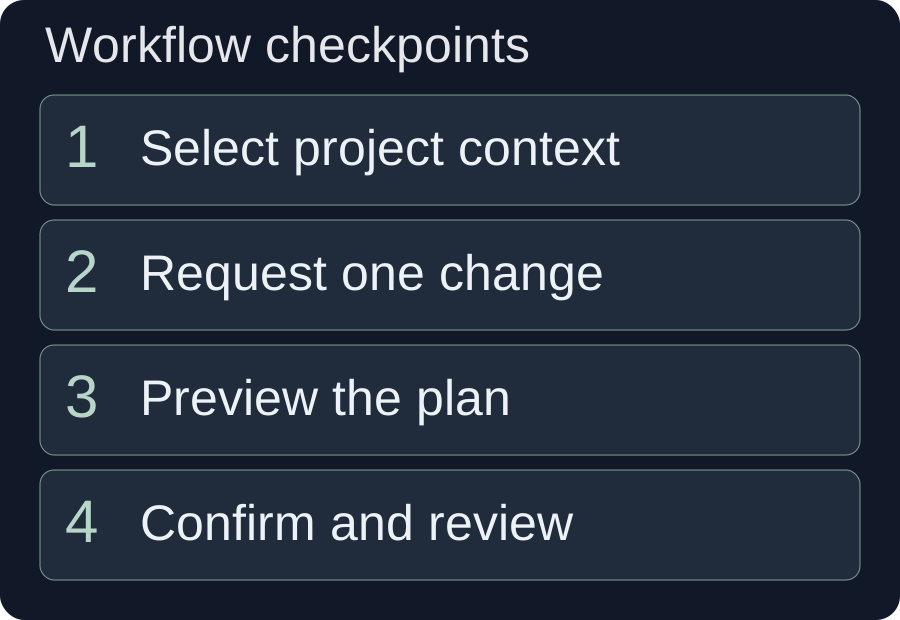
A displayed proposal is not necessarily an applied edit. The editor explicitly distinguishes a preview from a committed timeline change, and the pending proposal can become stale if the timeline or relevant sources change.
Read the proposal's summary and individual entries. Speech cleanup may show selected ranges categorized as pauses, fillers, repetition, false starts or corrections. A project edit can include timing details, an ordered review and notes. Use those details to decide whether the proposal matches your request, rather than approving it because the assistant sounds confident.
For short excerpts, play the selected range and check whether the opening has enough context. For a supporting-footage plan, inspect the selected placements and exclude unsuitable entries before applying. When source coverage is shown, check why a selected input was omitted. Omission can be reasonable, but it should not hide the only evidence for an important point.
Choose “Apply this plan” only after the review. The tool confirms application and checks that the project revision and relevant source state still match the proposal. Applied does not mean rendered: the edited project remains a timeline that needs playback and final output checks.
If the panel says the plan is stale, generate a new preview from the current timeline. Do not try to mentally translate an old range list after manually moving clips. A cut that referred to a previous project state may now correspond to a different sentence or position.
After application, examine the timeline and listen across every affected boundary. A cut can preserve the transcript yet create an abrupt breath, awkward motion or missing reaction. If the change is wrong, use the editor's available undo or version-restoration workflow and state the precise defect before requesting another proposal.
Hypothetical example: shorten a product interview
Hypothetical planning example: An editor has a two-minute interview about maintaining a piece of equipment. The speaker explains a cleaning step, repeats the same explanation, then adds that cleaning frequency depends on use. The intended output is a concise instructional segment that retains the qualification and shows the actual cleaning action.
The editor prepares the interview take and two supporting shots: the component being opened and the manual cleaning action. The request is limited to removing the duplicate explanation. It explicitly protects the frequency qualification and asks for a preview before any timeline change.
| Part of the source | Editorial intention | Acceptance check |
|---|---|---|
| First explanation of the cleaning step. | Keep it as the main instruction. | The action remains understandable without the repeated passage. |
| Second explanation with the same meaning. | Propose removing it. | The cut does not remove a unique warning or connective phrase. |
| Frequency depends on use. | Preserve the qualification. | The remaining segment does not imply one universal schedule. |
| Cleaning demonstration footage. | Add only after speech cleanup is accepted. | The image shows the actual named action and does not obscure the speaker at a needed moment. |
Suppose a proposed range includes both the repeated explanation and the qualification. The editor rejects that range and asks for a narrower preview. A shorter output would not justify removing the qualification. This is the central review decision: optimize the presentation while keeping the scope of the original claim.
After accepting the revised speech plan, the editor requests a cutaway for the cleaning sentence. A shot of the closed device is rejected because it does not demonstrate cleaning. If the library lacks the required action, the editor records it or retains the speaker's explanation without pretending an unrelated shot is evidence.
Finally, the editor checks captions against the edited speech, especially any phrase moved near a cut. The example describes an intended workflow, not a test result, and it makes no claim about how long the task will take or how much of the footage will be removed.
Add visual layers only after the speech is stable
Use library footage, titles and motion graphics to clarify the accepted message. Adding a layer is useful when it helps the viewer understand a specific beat, not merely because a tool can add it.
Search existing media through supported library tools and inspect the matches. The asset-library guide explains why AI understanding must precede semantic retrieval. If the available shot only resembles the request, describe the mismatch and replace it before applying the visual plan.
Motion graphics belong after the underlying message and timing are settled. A title can identify a step, a quotation can emphasize a statement and a simple graphic can clarify a relationship. Check readability, the entrance and exit, and whether the graphic covers the object the speaker is discussing. The motion-graphics tutorial develops that placement and review process.
The assistant's Skill picker offers a way to select a workflow rather than repeat a long set of instructions. Choose the relevant Skill and still provide project-specific inputs. A speech-cleanup workflow cannot infer that a product limitation is non-negotiable unless the source or brief makes that clear.
After a workflow has been accepted, the interface provides a route to ask for a reusable Skill. Describe its trigger, required input, editing rules, review steps and recovery conditions. Review that specification before saving it. A useful Skill records the decisions that worked, rather than preserving a vague request such as “make every video look good.”
Recover from tool and context problems
Use the reported state to decide whether to reconnect, re-preview, revise an input or inspect the project. These are different recovery actions, and a generic “try again” obscures the reason for the failure.
- Not connected: Inspect the selected runtime, account and program setup. Resolve the connection before requesting another editing operation.
- No relevant material: Import or reference the intended clip and verify that it is readable. For library results, confirm that useful footage has been understood.
- Stale proposal: Re-preview against the current timeline. Preserve the original editorial requirement, but do not reuse outdated source ranges.
- Source changed: Verify which file or media selection changed. Re-run the appropriate preparation or matching step before applying.
- Unexpected cut: Restore or undo through the available project controls, identify the lost meaning and request a narrower plan.
- Pending preview blocks export: Apply the accepted proposal or cancel it. Exporting an unresolved plan would leave the intended project state ambiguous.
The current export tools distinguish a rendered-video export from a non-linear-editor project export. The latter can present compatibility warnings or unsupported features during its preview. Read those warnings before treating an exported project as equivalent to the original timeline. A receiving editor may need additional inspection of titles, effects or other elements.
Reviewing the tool state is also part of sensible AI use. NIST's AI Risk Management Framework treats evaluation and risk management as ongoing work. In this editorial setting, the practical application is to inspect what changed and verify whether it still serves the intended message, rather than equating model confidence with correctness.
Complete the edit with playback and a clear handoff
Finish by playing the applied project and the actual output. A sound cut plan, a successful application and a successful export are separate checkpoints; none automatically proves the next one.
Listen without watching to find broken phrases, unnatural joins and music that masks speech. Watch without sound to inspect framing, cutaway relevance and text legibility. Then watch normally to check how the layers work together. These are suggested editorial passes, not built-in automatic quality guarantees.
Captions need a comparison with the final audio, especially after cuts and reordered sections. W3C's caption guidance explains why automatic transcription must be checked for accuracy. A missing negative word or an incorrect number can alter the meaning even when the text is well styled.
Give a reviewer the exported file, the editorial goal and any unresolved limitations. If a required supporting action was never available in the footage, record that honestly. Keep the accepted version and the reusable brief so the next edit begins with an understandable decision history.
The assistant is most useful when conversation reduces the work of expressing and revising an edit. Your final acceptance should still be based on the timeline, the source meaning and the exported video, all of which remain inspectable outside the conversation.
Frequently asked questions
Does a preview already change the timeline?
The current editor distinguishes preview-only proposals from applied changes. Read the proposal state and apply it through the available confirmation workflow when it is acceptable.
Can I edit manually after an assistant operation?
Yes. Applied changes remain on the project timeline. Manual changes can make a pending proposal stale, so generate a fresh preview before applying an old plan.
Does an assistant message mean export is finished?
No. Check the actual export task and open the resulting file. Applied timeline changes are not rendered output, and a pending preview must be applied or cancelled before export.
Prepared on 10 October 2026 from the current desktop editor's assistant panel and tool implementation, reviewed read-only. No runtime editing or export test was performed for this article. Connection settings, tool availability and fees must be checked in the installed client. The interview is a hypothetical example, with no measured time savings or claimed customer outcome.