

A clear talking-head edit starts with the spoken argument: keep the complete take, remove unnecessary repetition and put the explanation in an order a new viewer can follow. An AI editing assistant can help make those changes, but you still need to check the resulting timeline. This guide shows how to prepare the source, write reviewable requests, refine speech cuts and then add supporting visuals, captions and sound. It includes an illustrative rough cut and a practical acceptance checklist for the finished file.
Key takeaways
- Choose the complete and accurate take before polishing pacing.
- Make each AI request specific enough to verify, including the content that must remain.
- Check meaning, audible boundaries and useful pauses after every content edit.
- Add supporting footage and captions to the stable speech edit, then review the actual export.
Separate content editing from silence removal and packaging
Use the spoken message to decide what should remain. A repeated explanation, a quiet interval and a missing product demonstration are different problems. Removing every pause cannot decide which take is complete, and adding graphics cannot repair a contradictory explanation.
| Task | Decision it makes | What still needs review |
|---|---|---|
| Content edit | Which spoken passages to retain and in what order | Meaning, context and complete reasoning |
| Silence removal | Which quiet intervals meet the chosen audio threshold | Soft speech, breathing and useful pauses |
| Visual packaging | How supporting footage, text and sound present the explanation | Accuracy, readability and distraction |
The talking-head editing overview describes the content workflow. Keep the processing tools in the product guide separate in your planning: a threshold-based operation is not a substitute for an editorial decision.
This order also has a practical benefit. When the spoken sequence is still changing, captions and supporting shots can be attached to passages that later move or disappear. Stabilize the rough cut before polishing those relationships.
Prepare the source, transcript and editing goal
Begin with the original recording and a one-sentence goal for the edited video. A useful goal names the audience and the answer: “Show a first-time user how to open the travel cup and explain when the lock must be released.” Keep the source accessible while working on the edit.
Import and verify the spoken material
- Import the footage into the editing workspace and open the AI assistant.
- Complete transcription when the task relies on spoken content.
- Listen to the words that determine meaning: names, numbers, negations, conditions and technical terms.
- Identify repeated takes and decide which one contains the complete explanation.
- Note visual actions that must remain beside their spoken instructions.
Use the transcript to navigate and plan, but verify important passages against the audio. W3C’s Captions/Subtitles guidance says automatically generated captions need accuracy review. Check the words that affect this edit rather than treating fluent text as proof of accuracy.
Before the first request, your plan should identify the desired opening, the essential explanation and its conclusion. If you cannot state what must stay, a broad instruction to “make it tighter” will be difficult to evaluate.
Write AI editing requests that can be checked on the timeline
A useful request identifies a passage, an action and a preservation rule. Tell the assistant what to keep or remove, then specify the condition that must survive the change. Review one type of edit before adding another.
| Editing intention | Illustrative request | Verification |
|---|---|---|
| Choose between attempts | Keep the complete second explanation of opening the lid. Remove the first attempt that stops mid-sentence. | The selected attempt includes the full action and conclusion |
| Change the opening | Begin with the answer, then keep the demonstration and the condition about releasing the lock. | The opening is understandable before the demonstration |
| Remove repetition | Remove the repeated summary after the demonstration. Keep the first summary and the usage condition. | No necessary qualification disappeared with the repeated words |
Avoid combining “reorder everything, remove every pause, add B-roll and finish captions” in the first request. Separate changes let you identify which action caused an unwanted cut. If the intended passage is ambiguous, reference its distinctive words or source position instead of relying on “the boring part.”
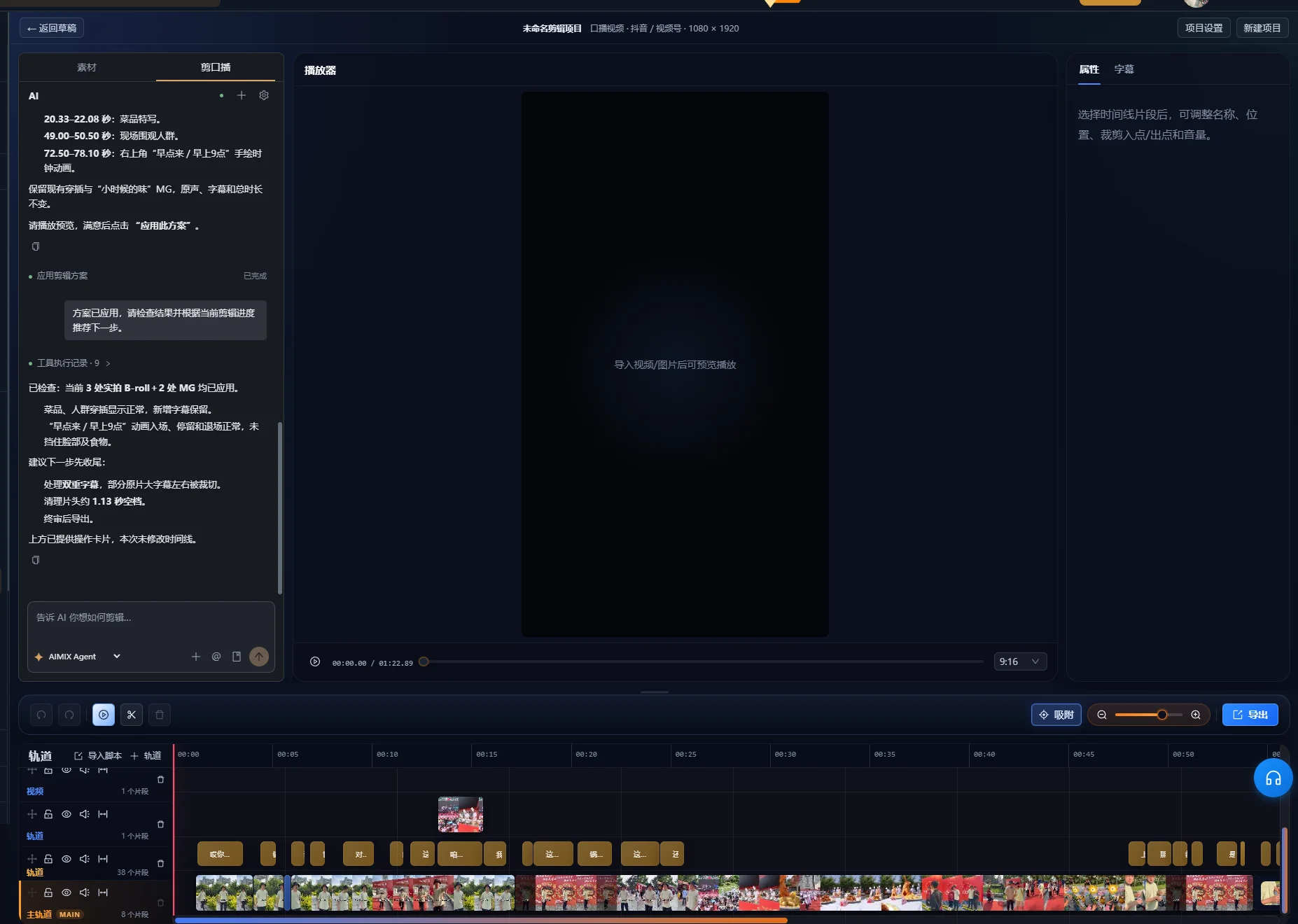
For a speech-cleanup proposal, inspect the preview before applying the edit. A pending proposal has not yet changed the timeline. The reviewed interface groups proposed changes such as pauses, fillers, repetitions, false starts and self-corrections, with source time ranges and items requiring manual review. Check the relevant ranges in the recording, then use the proposal’s apply control only after approving the changes. If the interface marks the proposal as stale, use its regenerate-preview control to prepare a new proposal against the current timeline before applying it.
After a request, inspect the actual timeline. Confirm that the intended segment moved or disappeared, then play the transition in context. A successful task response is not the same as an approved edit.
Worked example: keep a complete answer while shortening a take
This is a fictional recording used to illustrate an editing decision. It is not a measured app run or a customer result. Imagine a presenter making several attempts to explain a travel cup’s lid.
| Source passage | Illustrative wording | Edit decision |
|---|---|---|
| Unfinished attempt | “To open it, you push this part and then...” | Remove, provided no unique instruction occurs here |
| Complete attempt | “Release the lock first. Then press the button to open the lid.” | Keep both sentences together |
| Demonstration | The presenter releases the lock and presses the button | Keep enough time to see both actions |
| Repeated summary | “So, press the button to open it.” | Remove if the complete explanation already covers it |
| Useful condition | “If the lock is still engaged, release it before pressing.” | Keep where the condition clarifies the action |
Make the first content request
Keep the complete explanation beginning “Release the lock first,” along with the demonstration and the condition about the lock. Remove the unfinished opening attempt and the repeated final summary.
Inspect the result before reordering. Check that “first” still refers to releasing the lock and that the demonstration shows the same sequence. If the cut retains only “press the button,” it has become shorter by removing a necessary instruction.
Refine the opening without inventing new speech
You could begin with the complete explanation and move directly into the demonstration. Watch it as if you have never seen the product. Does the viewer know which lock and button the speaker means? If that context is missing, retain an establishing line or use an accurate visible title to identify the action.
The example’s success criterion is completeness, not a fixed duration. The finished sequence must communicate the correct order, show the action and preserve the relevant condition. A fluent later take should not automatically win over an earlier take that contains information it omits.
Refine each cut and preserve useful pauses
Play across every new edit boundary, including the words immediately before and after it. The transcript may locate a sentence, but sound and motion determine whether the actual transition feels complete.
- Listen for clipped word beginnings, endings and breaths.
- Check that the remaining sentence still has the intended subject and meaning.
- Watch for a hand, face or product action interrupted by the cut.
- Retain a pause where the explanation changes topic or the viewer needs to inspect a demonstration.
- Refine the boundary in the timeline when the automatic result is too tight.
W3C’s Audio Content and Video Content guidance recommends giving people time to process information and pausing between topics. That is a reason to preserve some space in an explanation, even when the raw recording also contains pauses worth removing.
If you use silence removal, test the chosen threshold on a representative passage containing both quiet speech and a deliberate pause. Compare playback with the original. If a soft word disappears or the rhythm becomes rushed, revise the settings or restore the relevant interval. This guide does not prescribe one threshold for recordings with different noise levels and microphone setups.
Smart speech cleanup also has timeline safety checks. The reviewed implementation can refuse a cleanup when overlapping assets or other active tracks prevent safe cuts. If the task declines to make a change, inspect the track arrangement and refine the edit manually rather than assuming every multi-track sequence can be cleaned automatically. A speech-first rough cut reduces the number of supporting layers affected by later changes.
Add B-roll that demonstrates the exact spoken point
Choose supporting footage by its explanatory role. A close-up of the correct button helps a viewer follow “press the button.” A beautiful shot of the whole product may establish its appearance, but it does not necessarily show the action.
Match assets to the stable speech edit
- List the spoken points that need a visual demonstration.
- Organize your footage and complete analysis required for the asset-search workflow.
- Describe the scene you need and inspect the suggested candidate.
- Place or refine the supporting shot so that its action coincides with the explanation.
- Play the complete passage, including the return to the speaker.
The asset workflow overview explains the library’s role. Search results still need inspection for the correct product, action and viewpoint. When the library lacks the needed demonstration, add suitable footage or revise the presentation plan.
Do not use B-roll simply to hide an editorial problem. Covering a jump cut can improve the visual transition; it cannot restore a missing condition in the spoken message. Check the audio sequence independently before deciding how much supporting footage to add.
Generate captions after the speech edit is stable
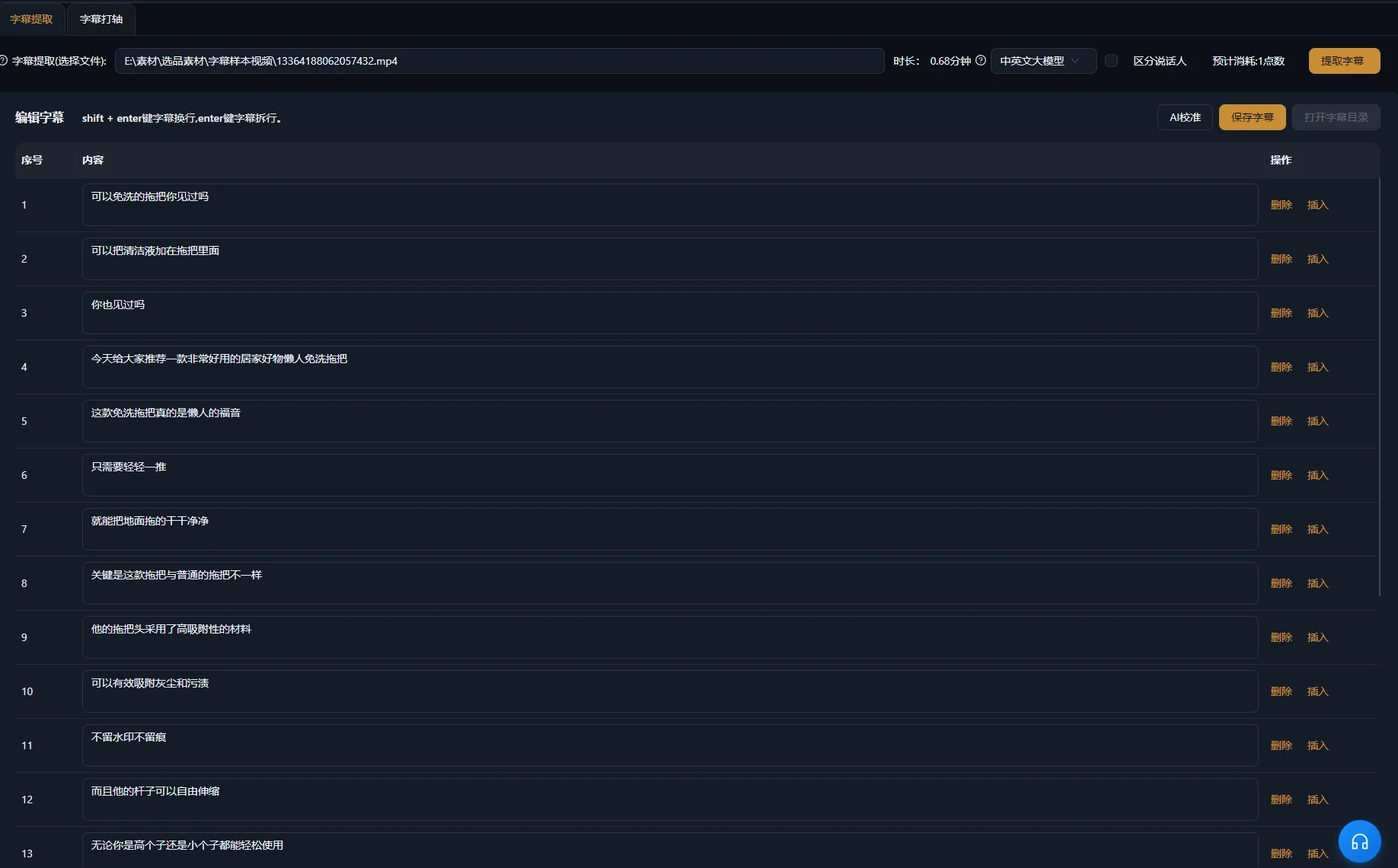
Caption the edited sequence, then check the text and timing against its audio. A source transcript and final captions serve different tasks: one helps select passages, while the other must follow what remains on screen.
Adobe’s Text-Based Editing overview in Premiere makes the same separation in its own workflow, recommending captions from the final edited sequence. This is a general workflow comparison, not a claim that the two applications have identical text-editing controls.
Review words, timing and placement separately
- Check proper names, quantities, negations and technical terms against the spoken words.
- Ensure each caption begins and ends with the passage it represents.
- Use readable breaks without separating a condition from the statement it qualifies.
- Keep text clear of faces, controls and product details the viewer needs to inspect.
- Include meaningful non-speech information when it is needed to understand the scene.
W3C’s Captions/Subtitles guidance treats relevant sounds and speaker identification as part of accessible captions. For a product explanation, an audible click may matter when it confirms that an action completed. Decide which sounds convey information rather than labeling every incidental noise.
See caption generation for the product workflow. Changing caption text does not correct a spoken mistake; inspect the audio separately and edit or replace the passage when the actual explanation is wrong.
Finish graphics and sound without obscuring the explanation
Add a title, emphasis text or motion graphic only when it makes a real point easier to follow. Keep the wording consistent with the speech. A graphic that states a broader claim than the presenter makes changes the message rather than simply decorating it.
Review the quietest spoken passage with music and effects enabled. If the words become difficult to understand, lower or remove the competing audio. The accessibility guidance cited earlier explains why foreground speech needs to remain distinguishable from background sound. Listen to the transitions as well as the average level: a musical hit or effect can obscure one important word.
Watch the captioned video once without sound to check whether the visual sequence remains understandable. Then listen without looking at the screen to notice abrupt joins or a missing referent. These are complementary editorial checks, not a guarantee that the finished video meets every accessibility requirement.
Refine the final timeline in the editing workspace. If you need several focused clips from a longer recording, the long-video clipping guide addresses topic selection and context before packaging.
Troubleshoot the rough cut before adding more polish
Fix the underlying content or timing problem before adding a visual layer. The following symptoms suggest different places to inspect; they are diagnostic possibilities, not measured failure rates.
| Symptom | Possible cause | Next action |
|---|---|---|
| The wrong take remains | The request did not distinguish similar attempts | Identify distinctive wording or source positions and specify what must stay |
| The sentence is shorter but misleading | A qualifier disappeared with repeated content | Compare the edit with the complete source explanation and restore the condition |
| A word sounds cut off | The boundary falls inside the audible word or breath | Listen across the join and refine the boundary manually |
| The delivery sounds rushed | Useful pauses were removed along with unwanted gaps | Restore room between ideas and demonstrations |
| The B-roll shows the wrong action | A visually similar asset was mistaken for an explanatory match | Review product identity and the action, then select suitable footage |
| Captions lead or lag the speech | The text or timing reflects an earlier edit | Check captions against the current final sequence |
| The text is right but the speech is wrong | Only the caption was corrected | Inspect and revise the spoken passage separately |
Approve the exported file against a clear checklist
The edit is ready when a new viewer can understand the explanation and the exported file matches the approved timeline. Play the actual export from beginning to end; timeline approval alone does not establish that the delivered file is correct.
- The opening identifies the subject and question.
- The retained take includes the necessary conditions and conclusion.
- Every content cut has been checked in playback.
- Demonstrations show the correct product and action.
- Captions match the final speech and remain readable.
- Music, effects and graphics support the explanation.
- The exported file contains the intended video, sound and text.
Retain the original recording and enough project information to explain what was removed or reordered. Start the next edit by improving the content brief, rather than applying the same cuts mechanically to a recording with a different message.
Frequently asked questions
Should I remove every filler word?
Judge the word in context. Remove an unnecessary hesitation when the resulting sentence still sounds complete. Some apparently disposable words introduce a contrast or preserve the speaker’s voice. Review the audio and meaning rather than applying a blanket rule.
Can I keep editing after an AI request?
Yes. Inspect the changes in the timeline and continue refining boundaries, supporting footage, captions and sound. A request produces a proposed edit that still needs your approval.
What if the speaker corrects a mistake in a later take?
Compare the full attempts and select the accurate explanation. Check whether the corrected take also includes the conditions and demonstration needed by the viewer. A shorter or smoother delivery is insufficient when it omits essential information.
Can captions make an unclear explanation understandable?
Captions can make speech accessible as text, but they cannot supply reasoning that the edit removed. Restore missing context in the spoken sequence or use an accurate explanatory element that clearly identifies any added information.