
Video Subtitle Removal: AI Removes Hard Subtitles, Watermarks and Logos
Author
Date Published

Burned-in subtitles are "baked" into the picture—they're not a subtitle track you can switch off, but part of the image pixels themselves, which is why no ordinary video editor can simply "delete" them. AIMIX's Subtitle Removal feature uses AI to detect subtitle, watermark, and logo regions, then performs restorative reconstruction of the underlying footage instead of just covering it up. Based on hands-on use of version V1.4.10 in September 2026, this article breaks down how AI subtitle removal differs in principle from manual masking, how to choose between the Base and Pro models, the complete step-by-step workflow, real-world restoration test results, and how it fits into a video deduplication and batch remixing pipeline.
Key Takeaways
- Burned-in subtitles, watermarks, and channel logos are all part of the image pixels—regular editors can't remove them; AI subtitle removal works by "detect region → infer background → restore frame by frame," not by cropping or covering
- The Base model suits static subtitles in standard positions on simple backgrounds, while the Pro model delivers more complete restoration for complex textures and large-font subtitles; running Base first, then Pro only if needed, is the most credit-efficient approach
- In our test, removing the bottom burned-in subtitles from a 62-second 1080P video took about 2 minutes with the Base model, and on simple backgrounds the restoration was virtually invisible to the naked eye
- The three most failure-prone cases: subtitles overlapping the main subject, word-by-word animated subtitles, and large semi-transparent watermarks—identify the type first, then decide how to process
- Subtitle removal is the first step in content repurposing and multi-account distribution: remove old subtitles → extract the script → swap voiceover and subtitles → deduplicate the video → batch remix—one complete pipeline
Why You Need Subtitle Removal for Your Videos
Start by telling two concepts apart. Soft subtitles are an independent subtitle track or external subtitle file—if they weren't burned into the picture at export, you can turn them off or delete them at any time. Hard subtitles (burned-in subtitles) are rendered into the image pixels when the video is exported, fused with the background. What you're always fighting is the latter.
In real-world workflows, the need for subtitle removal concentrates in three scenarios:
- Repurposing and localization: you found overseas reference footage carrying burned-in English subtitles and want to swap in a different voiceover and subtitle language—the original subtitles must be cleared first, or two sets of subtitles stacked on screen are unwatchable.
- Watermark and logo cleanup: videos downloaded from stock sites come with corner logos, top-right channel bugs, or semi-transparent watermarks; publishing them as-is looks sloppy and creates copyright optics issues, so they need cleaning before posting.
- Reusing old footage: a video you published six months ago has subtitles from the old script; now you want to remix it around new selling points, but the old subtitles clash with the new voiceover—step one is removing the old subtitles.
All three share one thing in common: you can't solve them by covering up. Here's where masking approaches fall short.
AI Subtitle Removal vs. Manual Masking: Completely Different Principles
Manual handling of burned-in subtitles usually takes one of three forms, each with a hard flaw:
- Crop and zoom: crop off the bottom of the frame and scale up to fill—the composition changes and resolution genuinely suffers; a 1080P video may end up with only 800P of effective quality.
- Blur bars or solid-color bars: lay a Gaussian blur or solid strip over the subtitle area—viewers instantly notice "something is being hidden here," and it looks cheap.
- Sticker covering: cover the original subtitle with a sticker or text—but you're blocking not just the subtitle, but the background content in that region too.
AI subtitle removal takes a different road: instead of covering the subtitle, it computes what the picture "underneath" the subtitle looks like. The process has three steps:
- Region detection: scans the picture frame by frame to locate the pixel regions of subtitles, watermarks, and logos—position, size, outlines, shadows, and transparency are all recognized.
- Background inference: analyzes the surrounding picture content (colors, textures, light and shadow direction) to infer what the covered background "should have looked like."
- Restorative fill: rebuilds the covered pixels frame by frame based on the inference, with cross-frame consistency checks so the restored area doesn't flicker or jump.
The difference in one sentence: manual masking "hides the problem," while AI subtitle removal "restores the picture as it was before the problem existed". This also explains why the AI approach is nearly seamless on simple backgrounds but occasionally shows flaws on complex textures—how hard the inference is depends on how complex the background itself is.
How to Choose Between the Base and Pro Models
AIMIX's subtitle removal offers two models: Base and Pro. Many users can't tell them apart. Fundamentally, both run the same pipeline—the difference lies in the refinement of background inference and restorative fill. The table below puts all three approaches side by side:
| Dimension | Base Model | Pro Model | Manual Masking (Crop/Blur/Sticker) |
|---|---|---|---|
| How it works | AI detection + standard restoration | AI detection + enhanced restoration with finer texture reconstruction | Physically covers the image area |
| Simple backgrounds (sky/solid color/blur) | Clean result, virtually seamless | Clean result, virtually seamless | Blur bar plainly visible |
| Complex textures (wood grain/brick walls/crowds) | Slight smearing on occasional frames | More complete texture-direction reconstruction | Obviously jarring, fake at a glance |
| Large fonts / heavy outlines | Removable, details slightly flat | More complete restoration, more natural edges | Requires large masking, loses more of the picture |
| Processing speed | Faster | Slower, roughly 1.5-2x the time of Base | Manual, clip-by-clip adjustment—slowest |
| Credit consumption | Lower | Higher | No credits, but lots of time |
| Recommended use | Default first choice—run it once and check the result | Upgrade when Base's result disappoints | Only as a fallback touch-up after AI processing |
The most credit-efficient workflow: process with the Base model first and preview the restoration; only re-run that clip with the Pro model when the subtitle background is complex and Base shows smearing or residue. For batch jobs, sample 1-2 clips to test both models and confirm the quality difference before committing to the full run.
Hands-On: The Complete Subtitle Removal Workflow for a 1080P Video
Here's a complete real-world test (September 2026, AIMIX V1.4.10). Three test clips:
- Video A: 62-second talking-head video, 1080P / 30fps, bottom-centered burned-in Chinese subtitles, white text with black outline
- Video B: 45-second product demo, 720P / 30fps, opaque logo in the top-right corner
- Video C: 30-second landscape footage, large semi-transparent watermark across the bottom
Steps
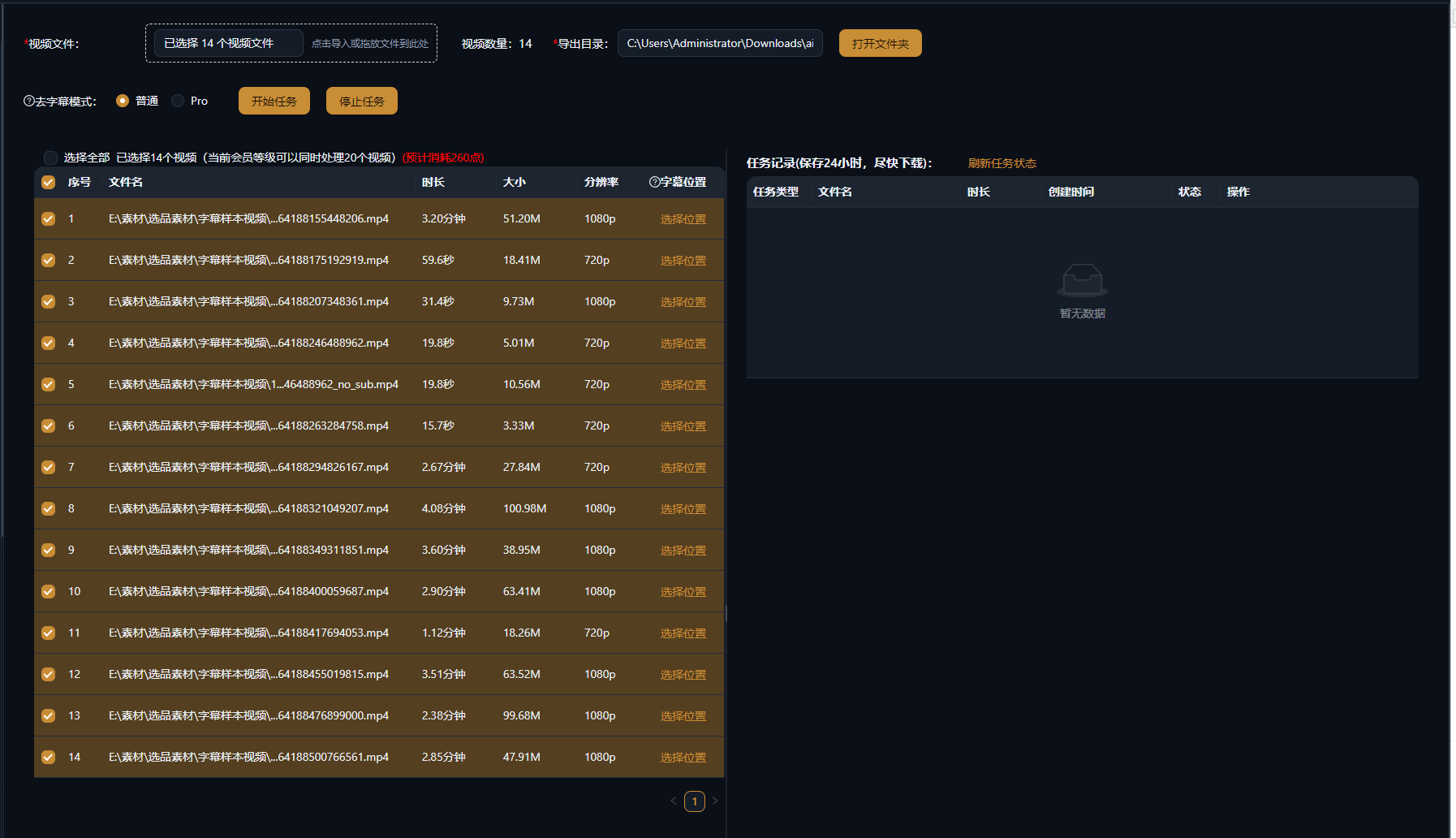
- Open the Subtitle Removal feature and import the video to process.
- Click auto-detect and the AI identifies the subtitle/watermark regions; the detection box can be manually repositioned and resized—the tighter the box fits the actual subtitle area, the higher the restoration quality.
- Choose a model: start with Base.
- Preview the restoration, paying special attention to the subtitle edges and where they meet the background texture.
- Export when satisfied; if not, switch to the Pro model and re-run.
Test Results
- Video A: about 2 minutes with the Base model, about 4 minutes with Pro; against a solid-color wall background, neither model left any visible restoration trace
- Video B: done in about 80 seconds with Base; the logo sat over a light gradient background, and the restoration left no residue
- Video C: slight residue with Base; after re-running with Pro, the watermark was essentially gone, with only 2-3 frames showing the faintest trace when paused and zoomed in
- Output specs: all three videos exported at their original resolution and frame rate—no downscaling caused by subtitle removal
How Good Is the Restoration After Subtitle Removal
Restoration quality depends heavily on what kind of background sits behind the subtitles. Test findings, ranked from easiest to hardest:
- Blurred backgrounds, sky, solid-color walls: restoration is essentially seamless—you can't find the boundary even scrubbing frame by frame at full zoom. This is the sweet spot for AI subtitle removal, and most talking-head videos fall into this category.
- Regular textured backgrounds (wooden desks, blinds, brick walls): the Pro model reconstructs the texture direction; static shots come out nearly flawless, and fast-motion shots show slight smearing on a few frames that's invisible at normal playback speed.
- Subtitles with outlines, shadows, or semi-transparent underlay bars: these attached elements are detected and removed along with the text—no separate processing needed.
- Subtitle edges overlapping desks or floor shadow areas: light and shadow transitions are restored naturally, with no obvious "patch" look.
Common Failure Scenarios and How to Handle Them
AI subtitle removal isn't omnipotent. Success rates drop noticeably in the three scenarios below—assess before you process:
Subtitles Embedded at the Bottom with Subject Content Reaching Into Them
Typical case: a speaker's hand gestures or a product's key details extend into the subtitle area. Background inference will "restore" that whole region back to background, potentially wiping out subject details along with it. Fix: manually shrink the detection box so it covers only the subtitle text line, not the subject; if the subtitle fully overlaps the subject, living with slight residue beats erasing the subject.
Animated Subtitles
Karaoke-style word-by-word highlighting, bouncing subtitles, lyrics that change position every frame. The subtitle region changes constantly, and auto-detection struggles to stably cover the full range of motion. Fix: enlarge the detection box to cover the subtitle's entire active area, accepting that restoration quality drops (the bigger the box, the harder the background inference); where possible, switching to a subtitle-free source is the safer choice.
Large Semi-Transparent Watermarks
The watermark covers a large area with gradient transparency, heavily blended into the background. Fix: go straight to the Pro model; if residue remains, export the video into Super Editor and use a secondary zoom-in, stickers, or cropping as a fallback fix.
Pairing It with Video Deduplication and Batch Remixing
Subtitle removal is rarely used alone—it's usually step one of a repurposing and multi-account distribution pipeline. The standard chain:
- Subtitle removal: strip the original burned-in subtitles, watermarks, and channel logos to restore a clean picture.
- Script extraction: pull the copy from the original video as a rewriting reference—don't copy it verbatim; only a rewrite has a chance of passing originality checks.
- AI voiceover + new subtitles: re-voice with your cloned voice or 2000+ official voices; subtitles auto-generate in sync with the voiceover, forming an entirely new audio and subtitle layer.
- Video deduplication: create visual fingerprint differences through mirroring, cropping, color tone, frame rate, and other multi-dimensional parameters.
- Batch remixing: the processed footage enters Super Editor's shot track, where shot groups, audio groups, and subtitle groups mass-spawn multiple final versions.
The key to this pipeline: subtitle removal clears "old information in the picture," deduplication changes "the visual fingerprint," and remixing handles "the permutations"—the three work at different layers, and you can't do without any of them.
When to Use It vs. When Not To
Content That Suits AI Subtitle Removal
- Footage repurposing: localization remixes that swap language, voiceover, and subtitles
- Logo cleanup: removing stock-site logos, top-right channel bugs, bottom watermarks
- Old footage reuse: stripping outdated script subtitles for a remix around new selling points
- Pre-processing for multi-account distribution: run in batch as the first step of the dedupe-and-remix pipeline
Content That Shouldn't Rely on AI Subtitle Removal
- Subjects inside the subtitle area: hands or key product details overlapping the subtitles mean restoration may eat into the subject
- Word-by-word animated lyrics: low detection success rates and unstable results
- Frame-perfect deliverables: commercial ads and other content demanding every-frame perfection should go back to the original subtitle-free footage
- Other people's content without authorization: subtitle removal doesn't change copyright ownership—reposting someone else's work without permission still carries infringement risk, and no tool can fix that for you
FAQ
What video formats are supported?
All mainstream video formats can be imported and processed; the client's supported list is authoritative. If a specially encoded format fails to import, convert it to MP4 with a format conversion tool first.
What's the difference between the Base and Pro models?
Both run the same pipeline; the difference is the refinement of background inference and restorative fill. Base suits static subtitles in standard positions on simple backgrounds, with faster speed and lower credit use; Pro delivers more complete reconstruction for complex textured backgrounds and large-font subtitles, at higher time and credit cost. Base first, then Pro.
Does it degrade video quality?
Subtitle removal only acts on the covered region and its surroundings; output resolution and frame rate match the original, with no whole-video degradation. A few complex-background frames may show slight smearing—that's a restoration trace, not quality loss.
Can it remove animated subtitles?
Word-by-word highlighting and bouncing subtitles are harder to handle, with unstable success rates. You can try enlarging the detection box to cover the subtitle's full range of motion, at some cost to quality; where possible, switch to a subtitle-free source.
What if traces remain after removal?
Troubleshoot in three steps: first confirm the detection box fits the actual subtitle area; then upgrade to the Pro model and re-run; if residue still remains, export into Super Editor and use a secondary zoom-in, cropping, or stickers for a second pass.
Does it consume credits?
Yes. Subtitle removal is billed per processing task, with different consumption for Base and Pro; the client shows the estimated cost before generation. Trial members get a free daily quota (reset automatically the next day) that's just enough to test the results on your own footage.
Can it process videos in batch?
Yes. Multiple videos can be queued and processed one after another—ideal for batch cleanup before multi-account distribution. For batch jobs, sample 1-2 clips first to settle the model choice and verify quality before running everything, so you don't burn credits repeatedly on unsatisfying results.
Is it better than manual mosaics or blur bars?
In most scenarios, AI subtitle removal wins: no masking traces, no lost composition or resolution. Manual masking's only edge is "certainty and control"—when AI restoration eats into the subject, stickers or blur can serve as a fallback. The two are complementary.
Can I add new subtitles after removing the old ones?
Yes—and that's the most common use. After removal, generate a new voiceover with AI and subtitles auto-generate in sync; you can also add your own subtitle groups on Super Editor's subtitle track, giving different versions different subtitles for batch remixing.
What video resolutions are supported?
Common resolutions (720P, 1080P, 2K, 4K) are all supported, and output keeps the original resolution. Note that higher resolutions mean longer processing times and higher credit consumption; for long 4K videos, evaluate the cost first.
Next Steps
If you happen to have footage with burned-in subtitles or watermarks on hand, try it now: pick a short clip with a simple background → auto-detect the subtitle area → run the Base model once → preview the restoration. Trial members get a free daily quota—just enough to verify how it performs on your own footage.
Download the AIMIX client and process your first video in Subtitle Removal.