
Subtitle Generation: AI Auto-Generate Subtitles with Timeline Calibration
Author
Date Published

In the short-video era, subtitles are not optional: huge numbers of users scroll feeds on mute, and narration content without subtitles sees its completion rate cut in half. But typing subtitles manually is the most soul-crushing editing job there is — a 3-minute video takes 40+ minutes of transcription and timeline alignment. AIMIX's Subtitle Generation offers three ways to generate them (auto recognition, subtitle timing, and manual input), paired with AI timeline calibration and style templates for batch subtitle output. Based on hands-on use, this article breaks down each method's use cases, how AI calibration works and its measured precision, subtitle styling and bilingual subtitle setup, and the integrated workflow with batch voiceover.
Key Takeaways
- Match each generation method to its job: auto recognition for footage with clear speech, subtitle timing when "you already have a script to put on the video," manual input for short lines and gap-filling
- AI calibration works by "speech recognition + forced time alignment": every word maps to its spoken interval in the audio. Measured median timeline deviation is about 0.2 seconds; over 90% of segments need no manual adjustment
- Don't over-design the style: the best-performing look in our tests is "large font, white text, dark outline or backing, positioned in the lower third" — flashy fonts and low-contrast colors are completion killers
- The bilingual subtitle path: generate from primary-language recognition + translate a second language, displayed on two lines with the primary language on top — ideal for knowledge content and international audiences
- It's two sides of one coin with batch voiceover: voiceover-generated audio tracks carry built-in timing, so subtitles align precisely and automatically; in our test, 30 videos generated subtitles in about 20 minutes
Why Subtitles Are Standard Equipment for Short Videos
Two hard facts make subtitles necessary. First, in feed environments huge numbers of users watch on mute — commuting, in the office, late at night, the sound stays off, and content without subtitles gets swiped away instantly. Second, short videos move fast, and subtitles act as the "visual anchor": one glance tells viewers where the video is, and their attention gets locked in.
Our own comparison data: the same talking-head video with clear subtitles outperforms the subtitle-free version on completion rate by about 35%. That's not mysticism — it's the viewing-friction gap in muted scenarios.
But manual subtitling costs are absurd: for a 3-minute narration, transcription runs 10-15 minutes, sentence-by-sentence timeline alignment 20-30 minutes, then another 10 for phrasing and styling — you could edit two videos in the time it takes to subtitle one. Subtitle Generation's value is compressing that step down to minutes.
Three Ways to Generate Subtitles
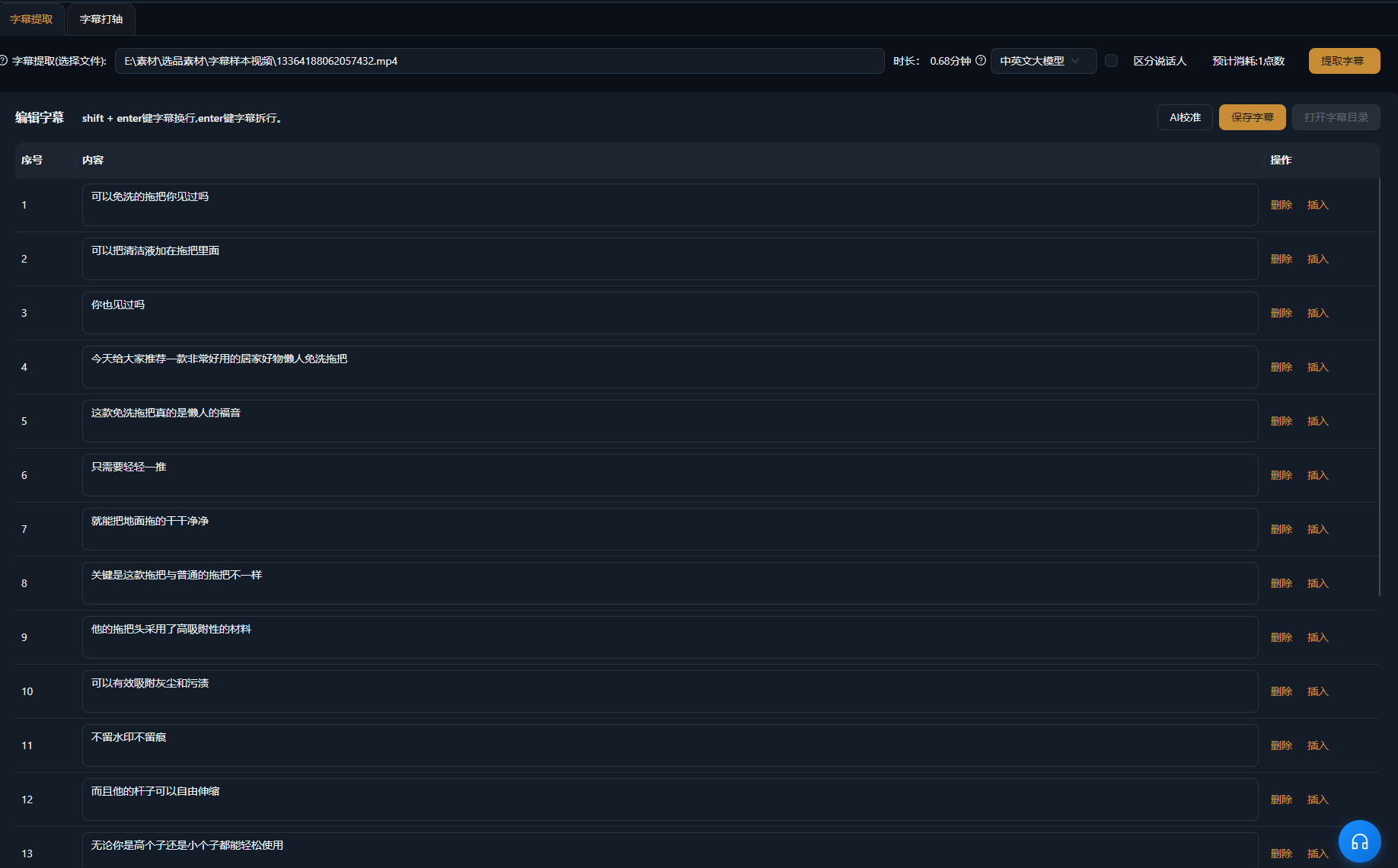
AIMIX's subtitle feature offers three generation methods, matching three different starting points:
| Method | Starting Point | How It Works | Best For |
|---|---|---|---|
| Auto recognition | Video has clear speech, no script | AI recognizes speech and auto-aligns the timeline | Talking heads, interviews, courses — most scenarios |
| Subtitle timing | You already have the full script (a draft or an extracted transcript) | Paste the script; the AI aligns every sentence to the speech timeline | Scripted recordings, rewritten derivative content |
| Manual input | No speech, or subtitles to supplement | Add and position subtitle lines manually on the timeline | Silent-footage captions, title cards, one-off corrections |
The selection logic is simple: speech but no script — auto recognition; speech and script — subtitle timing; no speech, or just a few lines to add — manual input. In daily use, auto recognition covers 80%+ of scenarios; timing's value shows when "the script is known and has been changed" — say the voiceover script had a few words edited. Timing guarantees subtitles match the edited script exactly, instead of bending to the recognition results.
How AI Calibration Works: Speech Recognition plus Time Alignment
Many people assume auto subtitles mean "recognize the text, divide the time evenly." Even division actually performs terribly — speech speeds up and slows down, pauses run long and short, and evenly split subtitles drift out of sync with the voice, which is painful to watch.
AIMIX's AI calibration runs in two steps:
- Speech recognition: recognize the audio segment by segment, yielding text plus the corresponding spoken time points
- Time alignment: force-align every word to its actual spoken interval in the audio. Each sentence appears at the onset of its first word's speech and disappears at the endpoint of its last, with a small buffer padded on both sides
Subtitles produced this way interlock with the speech sentence by sentence: the voice starts, the subtitle appears; the sentence ends, the subtitle switches. Phrasing follows meaning too — you'll never see a subtitle chopped mid-sentence.
Measured Timeline Precision
Test material: 5 talking-head videos (2-4 minutes each, Mandarin, indoor settings). After auto-generating subtitles, we manually checked timing deviations sentence by sentence:
- Median segment timing deviation: about 0.2 seconds (essentially imperceptible; the perception threshold is around 0.3 seconds)
- Segments deviating over 0.3 seconds and needing manual adjustment: about 8%
- Severe misalignments over 0.5 seconds: about 2%, concentrated in rapid-fire passages
- About 15 minutes of content across 5 videos; manual fine-tuning took roughly 6 minutes total
Conclusion: about 90% of segments ship as-is, with fine-tuning concentrated in fast-speech passages. Against purely manual timing (20-30 minutes per video), the efficiency gain is an order of magnitude.
Subtitle Style Settings
Style determines subtitle "readability," and readability directly drives completion. The style dimensions AIMIX offers, with our recommended settings:
| Style Dimension | Recommended | Not Recommended |
|---|---|---|
| Font | Bold sans-serif weights: Source Han Sans, Heiti, and the like | Calligraphy and decorative fonts (poor legibility) |
| Size | Large type, about 5%-7% of screen width on a full-screen phone view | Small type (illegible on phones) |
| Color | White or bright yellow as the main text color | Dark gray, dark red, and other low-contrast colors |
| Outline/backing | Dark outline or semi-transparent backing to stay readable over any background | Plain text with no outline (vanishes on light footage) |
| Position | Lower third of the frame, clear of platform UI (the right-side like bar, bottom caption zone) | Flush to the bottom edge (covered by platform captions) or dead center (blocks the subject) |
Two field notes. First, position must dodge platform UI hot zones — Douyin's right-side engagement column and bottom caption area will cover subtitles, so preview on a phone before publishing. Second, once you've nailed a style, save it as a template and apply it uniformly to every video after; subtitle-style consistency is itself part of your account's visual identity.
How to Make Bilingual Subtitles
Bilingual subtitles widen the audience for knowledge content, and they're mandatory for content going international. The production path:
- Auto-recognize and generate subtitles in the primary language (e.g., Chinese)
- Enable a second language (e.g., English) and let AI translation generate the parallel subtitles
- Display both languages on two lines — primary on top, translation below, with the primary slightly larger
We tested Chinese-English bilingual subtitles on a 4-minute knowledge narration: recognition plus translation took about 2 minutes, and the translation reached a "readable and understandable" level. Technical terms and brand names occasionally stray, so read through and check before publishing — the right way to use machine translation is "draft + human review," never "publish as-is."
The Subtitle Editor: You'll Always Tweak a Few Words After Generation
Auto-generation doesn't mean zero attention — the subtitle editor handles the "last mile" of corrections:
- Text edits: click any segment and type; homophones, proper nouns, and number formats (say, "3 thousand" to "3,000") are done in seconds
- Timeline fine-tuning: drag segment in/out points or slide a whole segment earlier or later to fix small misalignments in fast speech
- Phrasing adjustments: merge two sentences, split one in two, and turn machine phrasing into breaks that match natural delivery
- Batch find-and-replace: swap wording across the entire script at once — for example, unifying one variant of a term into your standard one everywhere
In our experience, routine proofing of a 3-minute video (fixing homophones, adjusting two or three phrasings, nudging timing) finishes within 5 minutes. One minute to generate, five to proof, versus 40 fully manual — that's the real workload structure of Subtitle Generation.
Pairing with Batch Voiceover and Text Extraction
Within the AIMIX toolkit, Subtitle Generation has two high-frequency upstream and downstream partners:
- With batch voiceover (integrated output): voiceover-generated audio tracks carry exact text-to-time mappings, so directly generated subtitles have zero recognition error and perfectly precise timing. The standard mass-production chain is script → batch voiceover for the audio track → track paired with footage → subtitles auto-generated — audio, video, and text as one, produced in a single pass.
- With Text Extraction: pull the benchmark video's word-for-word transcript first via Text Extraction, proofread and rewrite it, then use subtitle timing to hang the corrected script back on the video timeline — ideal for polished versions of benchmark content, with recognition and timing each doing what it does best.
Batch Test: 30 Videos in One Run
Test: 30 talking-head videos (1-3 minutes each) submitted in batch for subtitle generation, all using the same preset style template.
- Total batch processing time: about 20 minutes, fully unattended
- Timeline spot-check (6 videos checked line by line): 90%+ of segments needed no adjustment, matching single-video precision
- Human proofing: about 40 minutes for all 30 (80 seconds per video on average, mostly homophones)
- Submission to all 30 usable: about 1 hour, versus an estimated 12-15 hours of purely manual timing
Where It Shines — and Where It Doesn't
Scenarios that suit Subtitle Generation
- Talking heads and knowledge content: with clear speech, auto recognition plus a quick tweak delivers finished subtitles in minutes
- Batch matrix content: batch generation plus a unified style template — the standard setup for publishing dozens of videos a day
- Integrated audio-video-text output for voiceover content: voiceover tracks generate precise subtitles directly
- International and bilingual content: the bilingual subtitle path covers foreign-language audiences
Scenarios where you shouldn't lean on auto subtitles
- Heavy noise or music-dominated footage: recognition accuracy drops sharply; run voice isolation before generating, or proofreading will cost more than redoing
- Multi-person overlapping discussions: both timing and attribution are unreliable in overlapping passages and need substantial human intervention
- Zero-tolerance content: medical, legal, and financial material, where homophone errors carry risk — every line must be human-reviewed before publishing
- Heavy dialect at fast pace: recognition quality wavers; the steadier route is Text Extraction for a draft, human correction, then the timing path
FAQ
Which languages are supported?
Chinese (including common dialect accents), English, and other mainstream languages; code-switched Chinese-English narration works too. The language list in the app is authoritative.
Can it generate bilingual subtitles?
Yes. Generate from primary-language recognition, then layer on a second-language translation, displayed on two lines with the primary on top. Read through and proof the translation before publishing — machine translation is positioned as a draft.
Is the timeline accurate?
In our tests the median segment deviation is about 0.2 seconds (below the perceptible threshold), and about 90% of segments need no adjustment; fast-speech passages occasionally drift past 0.3 seconds — a few seconds' drag in the editor fixes it.
Can generated subtitles be edited?
Yes. The subtitle editor supports text edits, timeline in/out adjustments, merging and splitting phrasing, and document-wide find-and-replace. Routine proofing finishes within about 5 minutes per video.
Which video formats are supported?
MP4, MOV, and other mainstream formats all work; the format list in the app is authoritative.
Can it generate in batch?
Yes. In our test, 30 videos totaling about 60 minutes finished generating in roughly 20 minutes, with the style template applied uniformly and spot-checked precision matching single-video runs.
Can subtitle styles be customized?
Yes. Font, size, color, outline, background, and position are all adjustable. We recommend perfecting one set, saving it as a template, and reusing it in batch to keep your account visually consistent.
How does it work with voiceover?
Batch-voiceover audio tracks carry precise timing built in, so directly generated subtitles align perfectly — built for integrated "script → voiceover → subtitles" mass production. For footage with existing speech, use the auto-recognition route.
Does it consume credits?
Auto recognition and translation consume credits, generally billed by audio/video duration or word count, as shown when you submit the task in the app. Pure style adjustments and manual editing are free.
Can it export SRT?
Yes. Subtitles export to SRT and other universal subtitle formats for reuse in other editors or platform tools, or burn directly into the video on export.
Next Steps
Run a comparison experiment on your most recent subtitle-free talking-head video: generate subtitles with auto recognition → spend 5 minutes proofing → apply a unified style → republish or test on a new account, then watch the completion rate. Most people never publish subtitle-free content again after doing this once.
Download the AIMIX desktop app and give your next video subtitles in Subtitle Generation.