Import the video and subtitle text
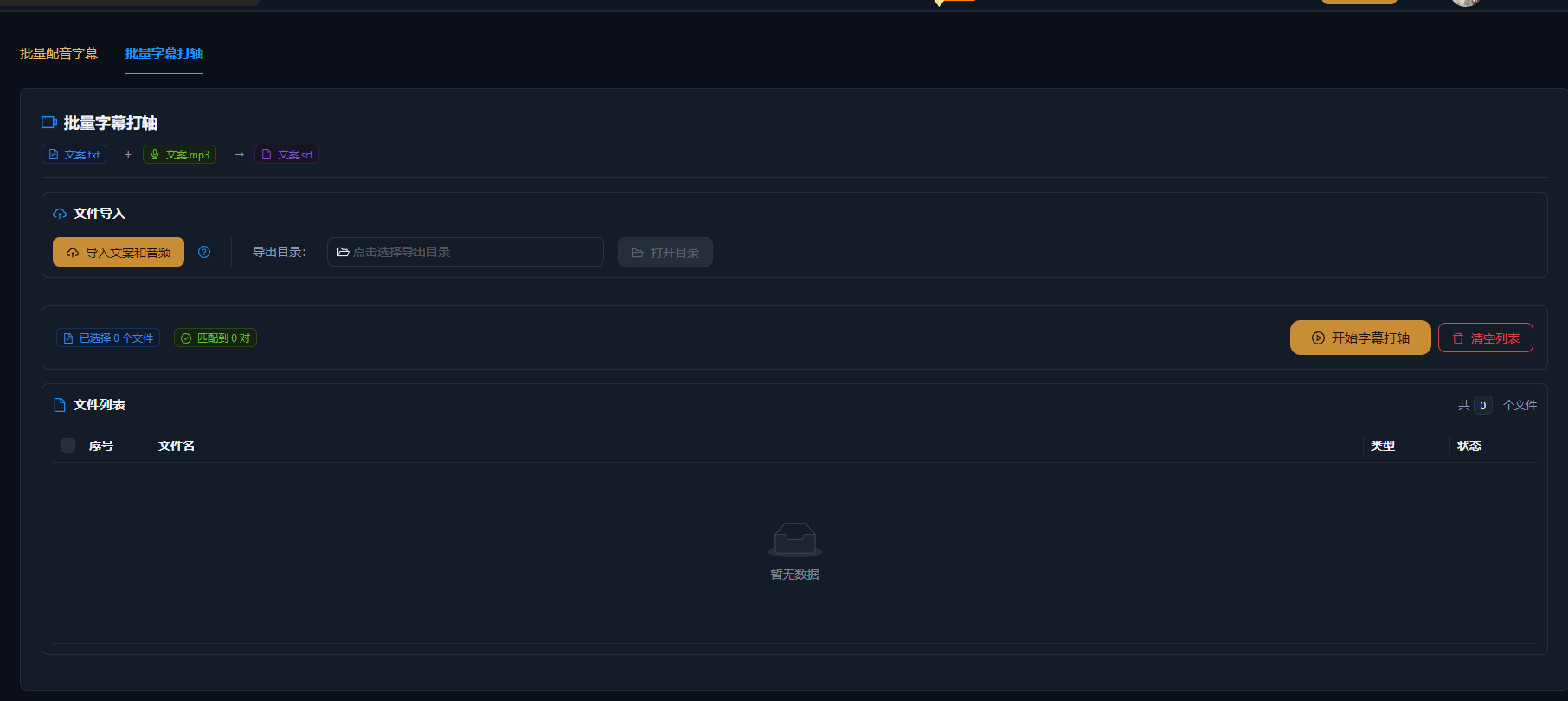
Bring the video and subtitle draft into Subtitle Timing together: paste your own text or use the results from Text Extraction. Multiple videos can be imported in batch, with one task handling the whole set.
Align subtitle timing for your videos line by line: translated drafts and external subtitle text without timestamps can be put on the timeline fast. Manual fine-tuning and AI auto-calibration are both supported, batch tasks handle multiple videos at once, and the finished subtitles go straight into your editing workflow.
AIMIX 다운로드You have a translated bilingual draft or a cleaned-up voiceover transcript—writing the subtitles is not the hard part. Making each line appear at exactly the right moment is: dragging cues into place one by one turns a few minutes of video into half an hour of work. Subtitle Timing hands this to the timeline tools: drag each line into alignment for precision, or let AI calibrate the timing points against the speech—line by line, subtitles never run early or lag behind.
Bring the video and subtitle draft into Subtitle Timing together: paste your own text or use the results from Text Extraction. Multiple videos can be imported in batch, with one task handling the whole set.
Drag subtitles into place on the timeline line by line; with AI calibration on, the system matches the in and out points of every subtitle line to the speech automatically—long sentences and fast talkers still land precisely, and the odd deviation just needs a manual nudge.
Preview the sync between subtitles and speech line by line, fine-tune individual time points, and export; the finished subtitles can continue into Super Edit for more work, or export together with the finished video.

아래 5개의 스크립트는 AIMIX "AI 스크립트 생성"의 실제 결과입니다. 각 사례에 표기된 영상 설명을 입력해 생성했으며, 스토리보드 표는 수정 없이 그대로 옮겼고 길이는 생성값입니다. 화면 설명이 생성되지 않은 장면은 "—"로 표시했습니다.
Best for: multi-language versions of talking-head videos and courses · translated drafts needing line-by-line alignment
结构Workflow: source video + translated subtitle draft → AI calibration times each line → fine-tune and export bilingual subtitles
Send the voiceover script out for translation and you get back plain text with no timestamps—the last mile of bilingual subtitles is all timing. Import the videos and translated drafts in batch into Subtitle Timing, let AI calibrate each line against the speech, spot-check manually, and bilingual subtitles for dozens of videos are done in half a day.
Subtitle Generation handles the transcription; Subtitle Timing handles the alignment:
u
p
a
If the video has no transcript yet, run Text Extraction first to get the script, then move into timing for alignment—the two steps chain together smoothly.
Subtitles follow the speech—never early, never late—matching the polish of professional releases.
No dragging cue by cue—AI calibrates the in and out points from the speech, and you only fine-tune the exceptions.
Multiple videos get timed in one task, rolling out subtitles in bulk for account matrices and multi-language versions.
Subtitle Generation transcribes subtitles from speech; Subtitle Timing aligns subtitle text you already have to the timeline line by line—it solves the alignment problem.
AI calibration uses AI analysis and consumes points per task, as shown in the app; purely manual timing costs nothing.
Clear spoken content like talking-head videos and courses reaches high accuracy; when fast speech or long sentences drift, a manual nudge on individual points fixes it.
Batch tasks are supported; the exact limit follows the app. Keep each batch within a size you can spot-check and work through batch by batch.
Yes. Timing results export with the video or continue into Super Edit, pairing with translation to produce bilingual subtitles.
Common subtitle formats are supported for import and export; see the app for the full list—pasting plain text onto the timeline works too.