
Subtitle Removal: Erase Burned-In Subtitles, Watermarks, and Logos in One Click with AI
Date Published

For subtitles and watermarks burned into the frame, ordinary editing can only crop or blur—damaging the picture and leaving traces. Subtitle Removal uses AI to locate the overlay and repair the covered background frame by frame; after removal the result is nearly invisible, and the footage is clean and usable again.
사용 방법
Upload videos
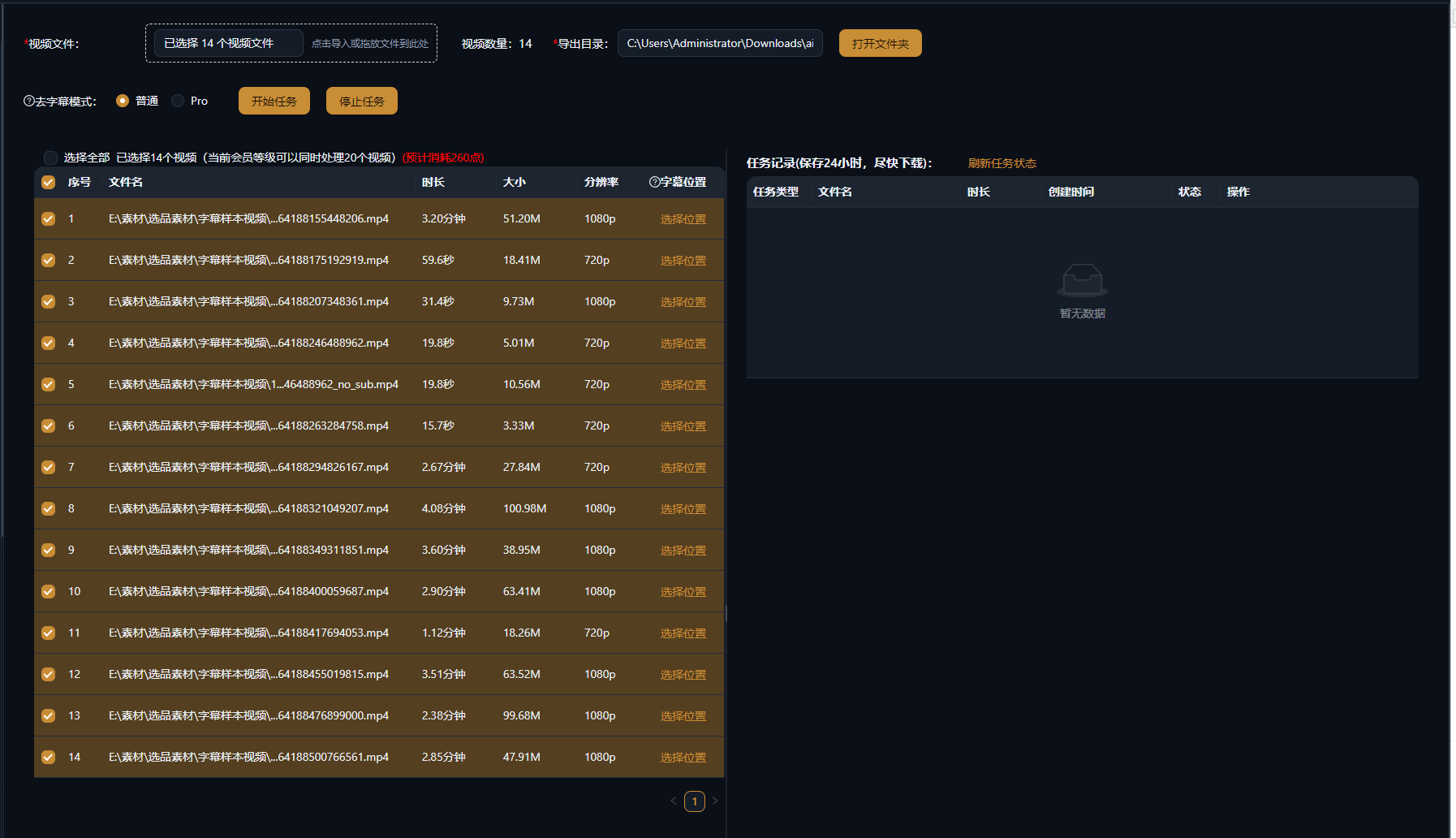
Import one or many videos with burned-in subtitles, watermarks, or logos; batch tasks simply queue up and run.
AI detects and erases
Subtitle and watermark areas are located automatically and the background is repaired frame by frame; if detection misses, manually box the area and reprocess.
Export clean footage
Preview, confirm, and export—ready for translation dubbing, remixing, or the next step in your editing workflow.
실제 사례
아래 5개의 스크립트는 AIMIX "AI 스크립트 생성"의 실제 결과입니다. 각 사례에 표기된 영상 설명을 입력해 생성했으며, 스토리보드 표는 수정 없이 그대로 옮겼고 길이는 생성값입니다. 화면 설명이 생성되지 않은 장면은 "—"로 표시했습니다.
Localizing overseas footage: strip the original subtitles first, then add a Chinese voiceover
Best for: translation and dubbing, multi-language remakes · source videos with burned-in subtitles
Workflow: import the source video → AI erases original subtitles → re-dub and re-subtitle → export
Clean the picture before rebuilding the content · Frame-by-frame repair leaves no black boxes · Batch-process an entire season
The first step of any dub is always erasing the original hard subtitles. One manual clip takes tens of minutes; with AI batch removal, the dubbing and new subtitles finally get a clean canvas.
Common uses for subtitle removal
Three high-frequency scenarios:
Remove burned-in subtitles
Erase hard subtitles to leave a clean picture for translation dubbing or remixing.
Remove watermarks and logos
Erase corner watermarks and channel logos—small, fixed areas produce the most stable results.
Clean a footage library in bulk
Queue entire batches for processing, ideal for one-pass prep across an account matrix or a translation channel.
Test one clip first to confirm the result, then batch-process the whole library.
편집 결과의 주도권 유지
Frame-by-frame smart repair
No black boxes or blurring—AI rebuilds the covered background for a natural-looking picture.
Single and batch modes
Manually box and fine-tune a single clip, or queue a whole library and skip the repetitive work.
Connects to translation dubbing
After removal, dubbing and subtitle generation pick up right away—one pipeline completes the localization.
자주 묻는 질문
Does removal hurt video quality?
Erased areas are rebuilt by AI while the rest of the frame stays untouched; static backgrounds look best, and fast-motion areas may show slight traces.
Can it remove moving subtitles?
Yes. AI tracks the subtitle position and erases it frame by frame; for subtitles that jump around a lot, test with a manual selection first.
What if detection is inaccurate?
Manually box the area and reprocess; for complex frames, combine auto detection with manual fine-tuning.
Is batch processing supported?
Yes. Add multiple videos to the queue and run them together—ideal for cleaning entire series or a footage library in one pass.
Can semi-transparent watermarks be removed?
Worth a try. AI rebuilds the background behind the watermark; watermarks deeply blended into the scene give limited results.
Does subtitle removal cost points?
Billing is by duration or per task, as shown in the app; batch tasks show an estimated cost before running.