
Subtitle Generation: AI Recognizes the Voiceover and Auto-Calibrates the Subtitle Timeline
Date Published

A short video without subtitles gets swiped away the moment viewers scroll past on mute—subtitles are table stakes now. But manual timing is the most tedious step of the workflow: listen to a line, type a line, sync a timestamp. Subtitle Generation hands it to AI: it recognizes the speech in the video, generates subtitles aligned sentence by sentence, calibrates the timeline, and after a quick style template you are ready to export. Subtitles for one video shrink from half an hour to one minute.
사용 방법
Import videos
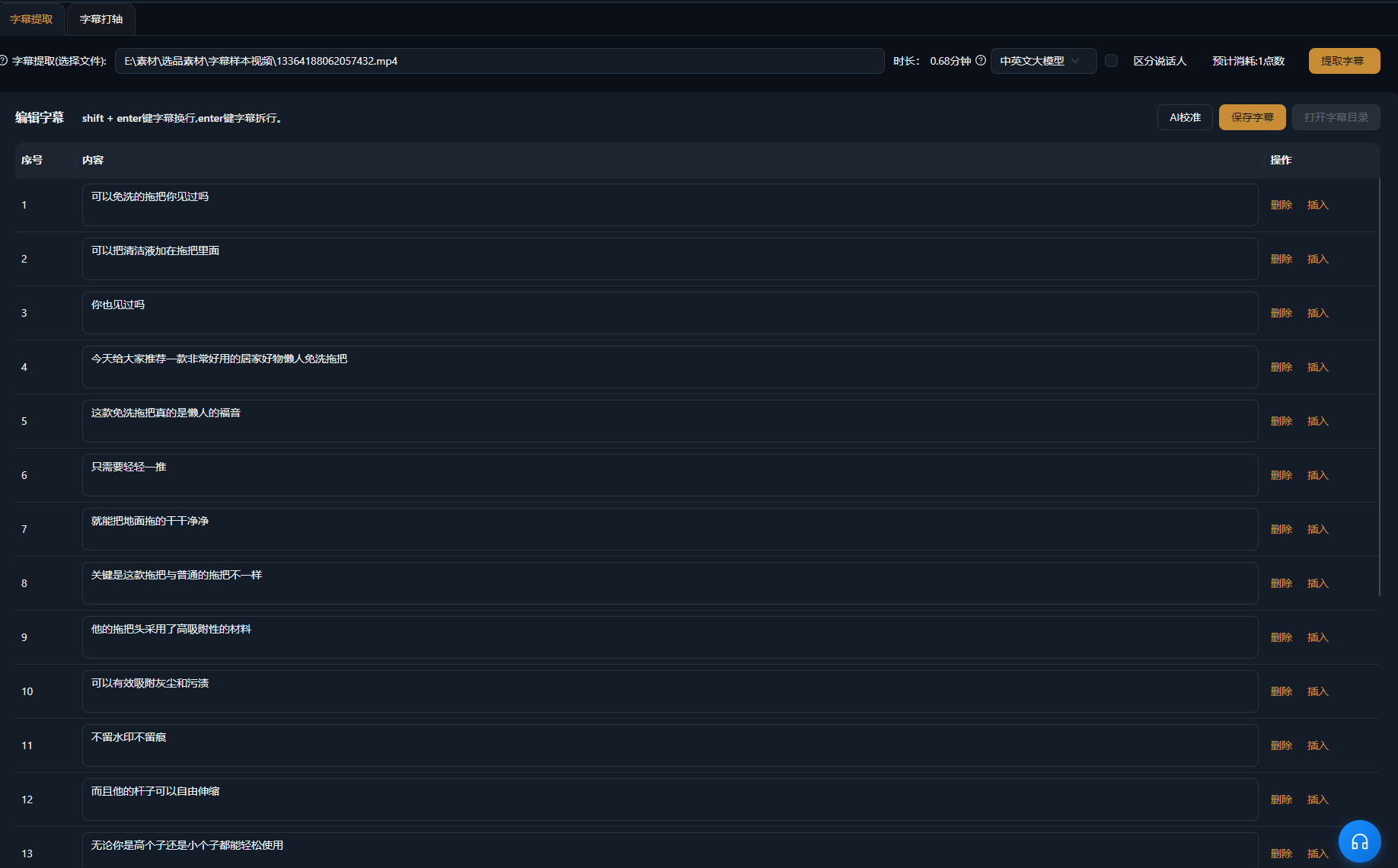
Bring the videos that need subtitles into Subtitle Generation: talking-head clips, finished remixes, and course recordings all work, and batch tasks process several at once.
AI generation and calibration
AI recognizes the speech, generates the subtitle text, and times it automatically at sentence breaks—every subtitle line starts and ends in sync with the voice, with no manual alignment needed.
Apply a style and export
Pick a subtitle style template and adjust font, color, outline, and position (center, bottom, or title-safe). Once it looks right, export—or jump into the timeline for more polish.
실제 사례
아래 5개의 스크립트는 AIMIX "AI 스크립트 생성"의 실제 결과입니다. 각 사례에 표기된 영상 설명을 입력해 생성했으며, 스토리보드 표는 수정 없이 그대로 옮겼고 길이는 생성값입니다. 화면 설명이 생성되지 않은 장면은 "—"로 표시했습니다.
Finished talking-head videos: a full set of subtitles in one minute
Best for: knowledge talking-heads, selling videos · finished videos that need subtitles fast
Workflow: finished talking-head video → AI generates and times subtitles → apply a style template → export
Timeline auto-aligned to the voice · Style templates apply in one click · Batch tasks handle multiple videos
After cutting a talking-head video, subtitles are the last chore left. Drop it into Subtitle Generation: AI recognizes the speech, generates subtitles line by line, and aligns the timeline automatically—apply a style template that matches your channel and export directly. Half an hour of manual timing becomes one minute of work, and a batch run covers every video you posted today.
How to choose a subtitle style
Every platform leans toward a different subtitle look:
S
e
K
n
M
u
Pick one default subtitle template for your channel and reuse it on every video to keep the look consistent.
편집 결과의 주도권 유지
Timeline calibrated automatically
Subtitle in and out points align with the voice line by line, cutting out the most time-consuming manual timing.
Batch-generate for multiple videos
No more one at a time—batch tasks finish subtitles for every video of the day in a single run.
Style templates in one click
Font, color, outline, and position come as templates, keeping subtitle styling consistent with your channel identity.
자주 묻는 질문
Does subtitle generation cost points?
AI recognition consumes points based on video duration, as shown in the app; an estimated cost is displayed before generation starts.
How accurate are the generated subtitles?
Clear spoken voiceover reaches high accuracy; for content heavy on proper nouns, a quick proofread after generation is recommended.
Does the timeline need manual adjustment?
AI times subtitles automatically at sentence breaks, and most cases need no adjustment; the odd break can be refined on the timeline.
Which languages are supported?
Chinese, English, and more languages are recognized and turned into matching subtitles; the exact language list follows the app.
Can I customize the subtitle style?
Yes. Font, size, color, outline, and position are all adjustable, and can be saved as templates for reuse.
Can subtitles be exported as a separate file?
Burning subtitles into the exported video is supported; standalone subtitle file export depends on the current app version.