
AI Highlight Extraction: Automatically Cut the Best Moments Out of Long Videos
Date Published

Out of a three-hour livestream replay, maybe only ten minutes are actually worth anything—yet nobody has the patience to hunt for them frame by frame. AI Highlight Extraction breaks long videos into highlight clips with four modes: Smart Mode finds the highlights, the rest split by structure, and every clip flows straight into editing.
Jak to działa
Choose an extraction mode
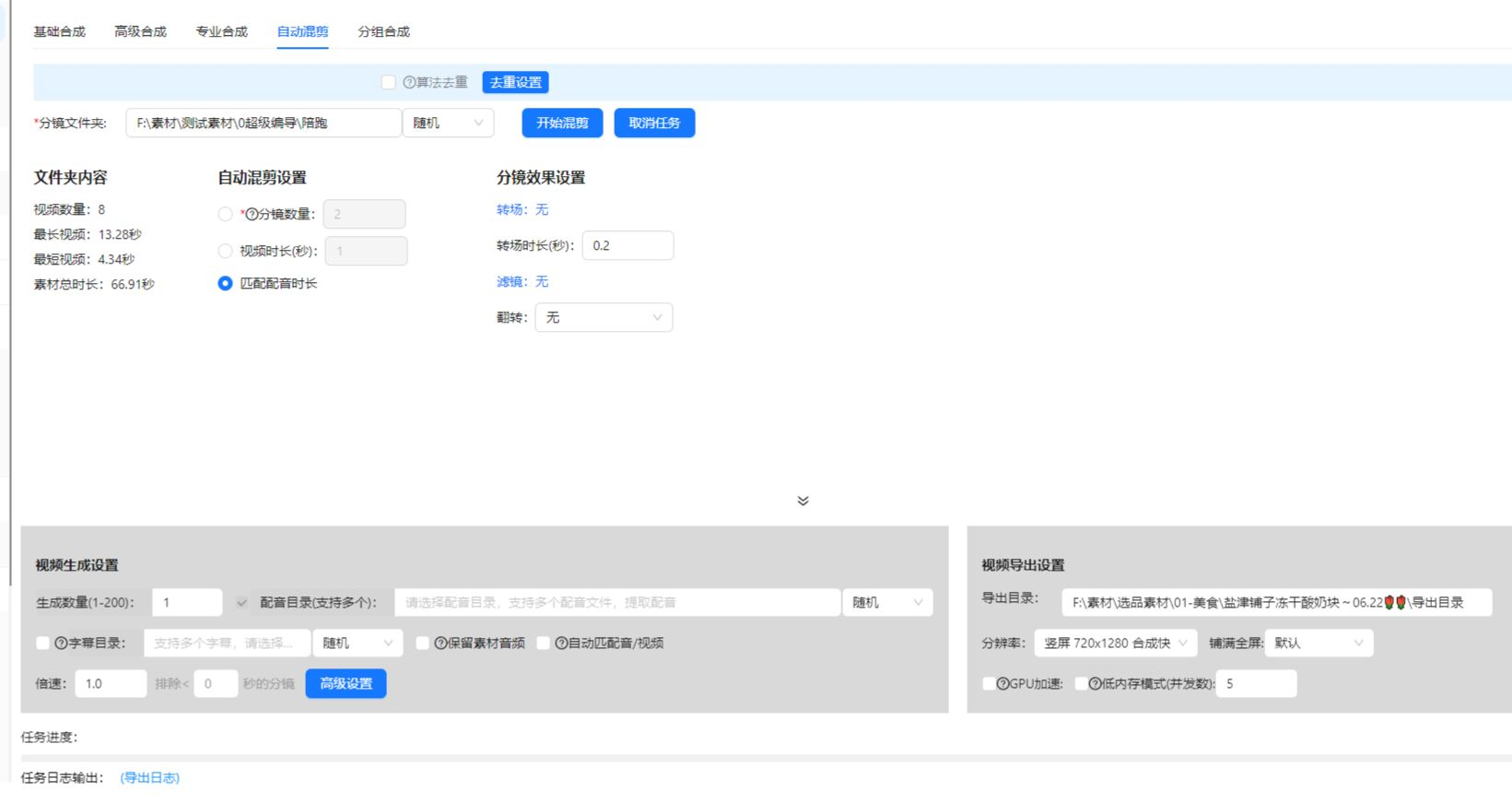
Smart Mode scores segments by visuals and audio to pick the best parts; transition, fixed-duration, and voiceover modes split by structure.
AI extracts automatically
After upload, candidate clips are cut automatically—preview and filter them, fine-tune the in and out points, and keep only the strongest.
Export or continue editing
Batch-export the clips you selected, or bring them into Super Edit to add subtitles and voiceover and package them as short videos.
Realne przykłady
Pięć poniższych scenariuszy to rzeczywiste wyniki generowania scenariuszy przez AIMIX AI na podstawie promptu z każdego przykładu. Powstały po chińsku; tabele przetłumaczono bez zmian, czasy są takie, jakie wygenerowano. Scena bez wygenerowanego opisu kadru jest oznaczona „—”.
Livestream replays: cut 20 short videos from a 3-hour stream
Best for: commerce and gaming livestreams · long replays with scattered highlights
Workflow: livestream replay → Smart Mode extraction → filter clips → package and publish
AI auto-locates the peak moments · One stream fuels a week of clips · Clips go straight into the editing workflow
Half of the payoff from a livestream comes after the stream ends. Highlight explanations and standout scenes are pulled out automatically—one stream becomes a week of short videos.
How to choose among the four modes
Match the mode to your footage:
Smart Mode
AI scores segments by visuals and audio to pick the best parts—the first choice for livestream replays, sports, and vlogs.
By transition
Splits at detected shot changes—great for multi-camera footage with clear visual language.
By fixed duration
Cuts evenly at a set number of seconds—suited to surveillance feeds and slow streams with no natural rhythm.
By voiceover
Recognizes speech and splits at sentence breaks—ideal for interviews and courses, where each sentence is one knowledge point.
Not sure? Run Smart Mode first, then switch to a structural mode if needed.
Zachowaj kontrolę nad montażem
Turn long content into assets
Livestreams, podcasts, and course replays become a short-video library—record once, monetize many times.
Four modes cover everything
Whether or not your footage has a clear rhythm, it can be split—no need to switch tools for different material types.
From extraction to editing
Highlight clips go straight into Super Edit, connecting seamlessly with subtitles, voiceover, and batch remixing.
Częste pytania
What is the difference between the four modes?
Smart Mode uses AI scoring to find the highlights; the other three split by structure—the former finds the "moments," the latter preserves the "structure."
How long a video can it handle?
Typical livestream replays and course lengths are all supported; for extra-large files, check the duration limit first.
Are the extracted clips vertical?
Clips keep the original aspect ratio; pair them with video cropping to convert to 9:16 or other vertical formats before publishing.
Can it process videos in bulk?
Yes. Queue multiple long videos for extraction and the clips land in your library automatically—ideal for a serialized channel.
What if Smart Mode picks poorly?
Results support preview, filtering, and in/out fine-tuning; for flat, evenly paced speech, switch to voiceover mode instead.
Does highlight extraction cost points?
Billing is by duration or per task, as shown in the app; batch tasks display an estimated cost before they run.