
AI script generation: turn a topic into a shootable video script
Date Published

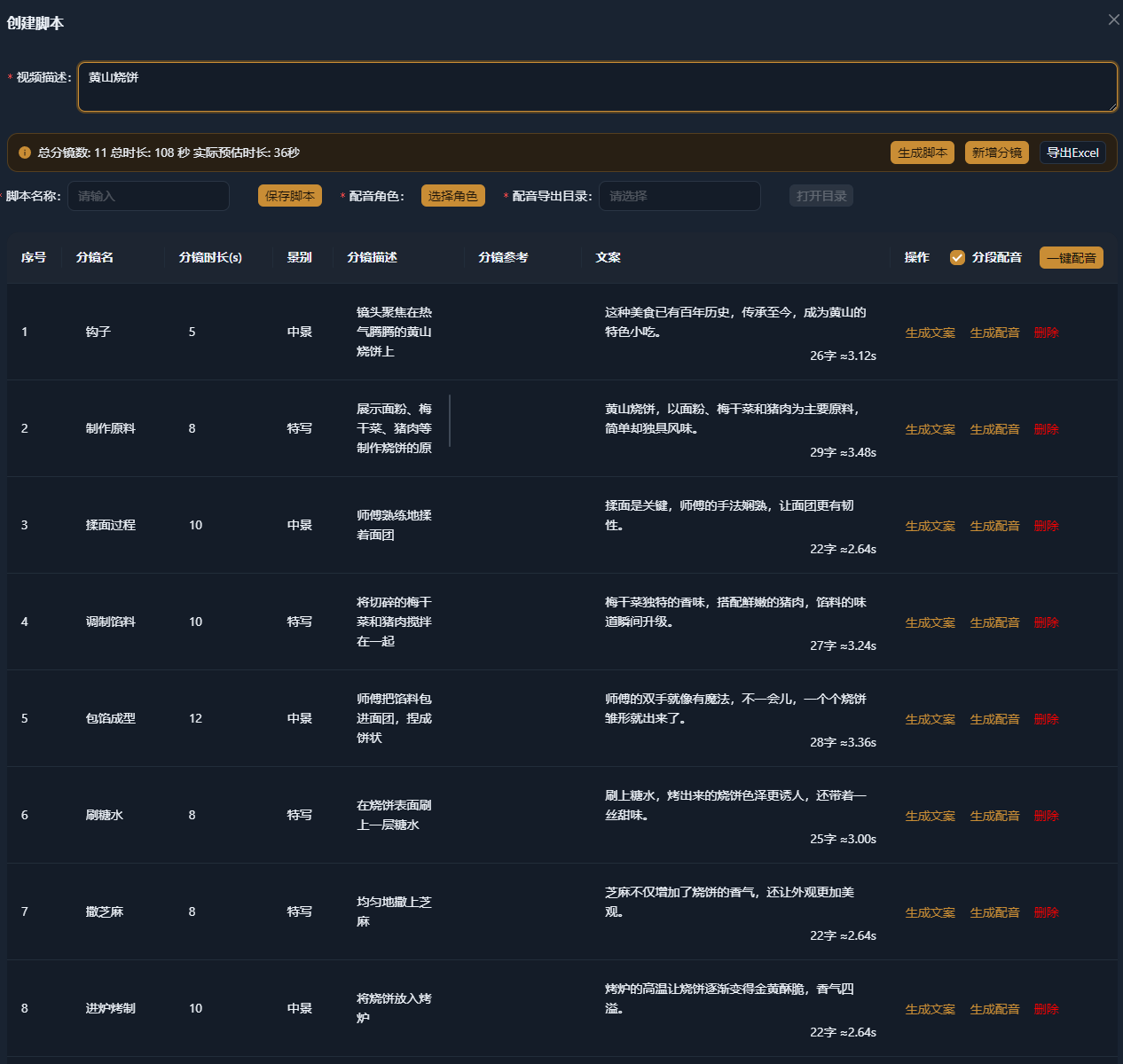
Built for product videos, talking-head lessons, local business promos and campaigns. A script decides a video’s structure and pacing, yet most teams stall at the blank first draft. Write your topic, audience and desired structure as one prompt, and AI returns a complete storyboard you edit into your own version.
How it works
Describe your video
State the topic, category and audience, then the structure (for example “hook + three points + call to action”), total length, number of scenes and copy length per scene. The more specific the prompt, the closer the first draft — up to 2,000 characters.
Generate and refine the storyboard
AI outputs a full storyboard: scene names, durations, shot types, visual descriptions and voiceover copy, with scene count and estimated length calculated automatically. No need to regenerate — edit copy, retime scenes, add or remove rows, then save to script management.
Voice, export and start editing
Pick a voice and generate the voiceover in one click. Export the storyboard as an Excel shot list for your crew, and import saved scripts straight into the editor’s storyboard track to continue with batch editing or AI film generation.
Real-world examples
The five scripts below are actual outputs of AIMIX AI script creation, generated from the prompt shown in each example. They were generated in Chinese; the tables are translated without edits, durations are as generated. A scene without a generated visual description is marked “—”.
E-commerce: a product video for a knit top(5 scenes · 40s total)
Prompt entered:Product video for a womenswear store’s new spring knit top, audience: office women 25–35, structure: pain-point opening → on-body look → fabric close-up → price offer, about 40 seconds total, 5–6 scenes, 15–25 characters of voiceover per scene
| Scene | Shot | Time | Visual | Voiceover |
|---|---|---|---|---|
| Hook | Medium shot | 8s | Host looks into the camera, troubled, hands spread | Still stuck on what to wear this spring? One knit top solves it! |
| On-body look | Full shot | 8s | Host wears the knit top and shows the full outfit | A tailored fit that’s polished for the office. |
| Fabric close-up | Close-up | 8s | Host holds up the fabric to show texture and feel | Soft, skin-friendly and breathable — no stuffiness. |
| Styling options | Medium shot | 8s | Host styles the top in different combinations | One top, multiple looks for the workweek. |
| Price & offer | Medium shot | 8s | Host holds the price card and smiles at the camera | Great price — don’t miss it, working ladies! |
The requested structure, 40-second length and per-scene copy length all matched. In practice you swap the copy for your store’s wording and real prices, generate the voiceover in one click, then import the script into the editor’s scene groups to batch-edit ad variations from product footage.
Beauty: launching a niacinamide serum(5 scenes · 35s total)
Prompt entered:Beauty product video for a new niacinamide brightening serum, audience: students and office women 20–30, structure: pain-point opening → texture close-up → how to use → results promise → limited-time offer, 35 seconds total, 5 scenes, 15–20 characters of voiceover per scene
| Scene | Shot | Time | Visual | Voiceover |
|---|---|---|---|---|
| Pain-point opening | Close shot | 7s | Host frowns, pointing at dull areas of the face | Dull skin and blemishes getting you down, ladies? |
| Texture close-up | Close-up | 7s | Host squeezes out the serum, showing how it flows | The new niacinamide serum — light and easy to spread. |
| How to use | Close shot | 7s | Host applies the serum and massages gently | Apply mornings and nights, massage to absorb. |
| Results promise | Close shot | 7s | — | Use it consistently — brightening that shows. |
| Limited-time offer | Close shot | 7s | Host excitedly shows the offer | Limited-time deal — students and office ladies, go! |
A textbook seeding structure in one pass: pain point, texture, usage, results and offer each get a scene, 7 seconds apiece. Scene 4 came back without a visual description — a chance to show the table is editable: add “host shows before-and-after comparison” and save.
Tech: unboxing ANC earbuds(6 scenes · 50s total)
Prompt entered:Tech unboxing short video, active noise-cancelling wireless earbuds, audience: commuting office workers, structure: unboxing suspense → design details → ANC test → wearing comfort → price offer, 50 seconds total, 6 scenes, 15–25 characters of voiceover per scene
| Scene | Shot | Time | Visual | Voiceover |
|---|---|---|---|---|
| Hook | Medium shot | 8s | Host holds the sealed box with a mysterious smile | Commuter’s treat! ANC earbuds unboxing — suspense on. |
| Design details | Close-up | 8s | Camera focuses on the earbuds and accessories | Sleek and compact, full accessory kit — love this design! |
| ANC test | Close shot | 10s | Host puts them on, surprised expression | Noise cancelling on — the commute noise just vanishes! |
| Wearing comfort | Close shot | 10s | Host shakes head and walks to show they stay put | Light and snug — no fatigue even after hours. |
| Price offer | Medium shot | 8s | Host reveals the price tag, delighted | This good, at this price — buy without thinking! |
| Closing push | Medium shot | 6s | Host smiles with a peace sign at the camera | Make your commute enjoyable — order now! |
A complete unboxing arc: suspense, design, ANC test, comfort, price and closing push. The two key moments — ANC and comfort — get 10 seconds each while the rest stay tight. Export the Excel sheet as the shot list, film scene by scene, then import into scene groups to edit.
Creator: three 60-second talking-head videos a week(6 scenes · 60s total)
Prompt entered:Career talking-head short video, topic: what to do when meetings keep interrupting you, audience: workplace newcomers, structure: hook + three points + call to action, 60 seconds total, 6 scenes, conversational tone, 20–30 characters of voiceover per scene
| Scene | Shot | Time | Visual | Voiceover |
|---|---|---|---|---|
| Hook | Medium shot | 10s | Host shrugs at the camera, frustrated. | Getting cut off in meetings is exhausting — here’s how to fix it! |
| Align beforehand | Close shot | 10s | Host smiles and holds up one finger. | Loop your lead and teammates in before the meeting so your input gets heard. |
| Keep it tight | Close shot | 10s | Host spreads both hands, earnest. | Be concise — rambling invites interruptions. |
| Recover gracefully | Close shot | 10s | Host counts three fingers. | If you’re cut off, respond politely and finish your point. |
| Recap | Medium shot | 10s | Host folds hands, warm expression. | Align early, stay concise, recover gracefully — three moves to remember. |
| Call to action | Medium shot | 10s | Host extends an open palm, inviting. | Workplace newcomers, try these and own your next meeting! |
Hook, three points, recap and call to action all present — six scenes, exactly 60 seconds. The creator typically only retimes scenes to control pacing, exports the one-click voiceover, and hands the script to AI film generation to match footage — topic to finished video within a day.
Local restaurant: shooting without a scriptwriter(5 scenes · 45s total)
Prompt entered:Local restaurant video, a new home-style eatery in a shopping district, signature dish: wok-fried pork, about ¥60 per person, structure: space → signature dish → tasting reaction → price and address, 45 seconds total, 5 scenes, 15–25 characters of voiceover per scene
| Scene | Shot | Time | Visual | Voiceover |
|---|---|---|---|---|
| Hook | Full shot | 8s | Exterior and signboard of the restaurant | A new home-style spot in the district — the wok-fried pork is a must! |
| The space | Medium shot | 9s | Interior, tables and decor | A comfortable space, great for group dinners. |
| Signature dish | Close shot | 10s | Chef stir-frying the pork in the wok | Wok-fired pork — heat and seasoning on point. |
| First bite | Close-up | 10s | Diner’s satisfied reaction after the first bite | One bite — tender, juicy, so good! |
| Price & address | Medium shot | 8s | On-screen price and address overlay | About ¥60 per person, right in the district — come try it! |
AI added a hook opening on its own, and the five scenes double as a ready-made shot list: export the Excel sheet for the staff to film scene by scene — no scriptwriter needed. Back at the desk, import the script into scene groups and every clip lands where it belongs.
How to write a good video description
Output quality tracks how specific your prompt is. “Make a product video” and a prompt that nails six elements produce completely different first drafts. Fill these in and one generation gets you 80–90% of the way:
Topic and product
Say it in one line: “new spring knit top for a womenswear store”, not “a clothing video”.
Audience
“Office women 25–35” decides tone and which selling points lead; a clear audience makes the hook land.
Structure
Give the skeleton: “pain-point opening → on-body look → fabric close-up → price offer”. AI organizes scenes around it.
Total length
“About 40 seconds total” — AI spreads the time across scenes and totals the estimate.
Scene count
“5–6 scenes” controls pacing density; leave it out and AI decides by content.
Copy length per scene
“15–25 characters per scene” sets the voiceover rhythm — shorter copy, faster pace.
| Dimension | Too vague | More specific |
|---|---|---|
| Topic | “Make a product video” | “New spring knit top, womenswear store, office women 25–35” |
| Structure | “Make it attractive” | “Pain-point opening → on-body look → fabric close-up → price offer” |
| Length and pacing | “Keep it short” | “About 40 seconds, 5–6 scenes, 15–25 characters per scene” |
The description allows up to 2,000 characters. If you run out of room, protect the six elements first and fine-tune in the storyboard afterwards — faster than regenerating.
What each storyboard field is for
The output isn’t a wall of text — it’s a storyboard you can execute. Every field has a place in the workflow that follows:
| Field | What it is | Where it goes next |
|---|---|---|
| Scene name | What this scene covers, e.g. “Hook”, “Price offer” | Creates the matching scene group when imported into the editor |
| Scene duration | Seconds this scene should run | Rolls up into the estimated total; paces shooting and editing |
| Shot type | Full / medium / close shots as shooting hints | Camera-language reference for the crew |
| Visual description | What happens on camera, e.g. “host holds up the price card, smiling” | The shot list; AI film generation matches footage to it |
| Voiceover copy | What is said in this scene | One-click voiceover; captions derive from the same copy |
Every field stays editable after generation: change copy, retime scenes, add or remove rows — totals update live, and you save when it reads right.
Three routes from script to finished video
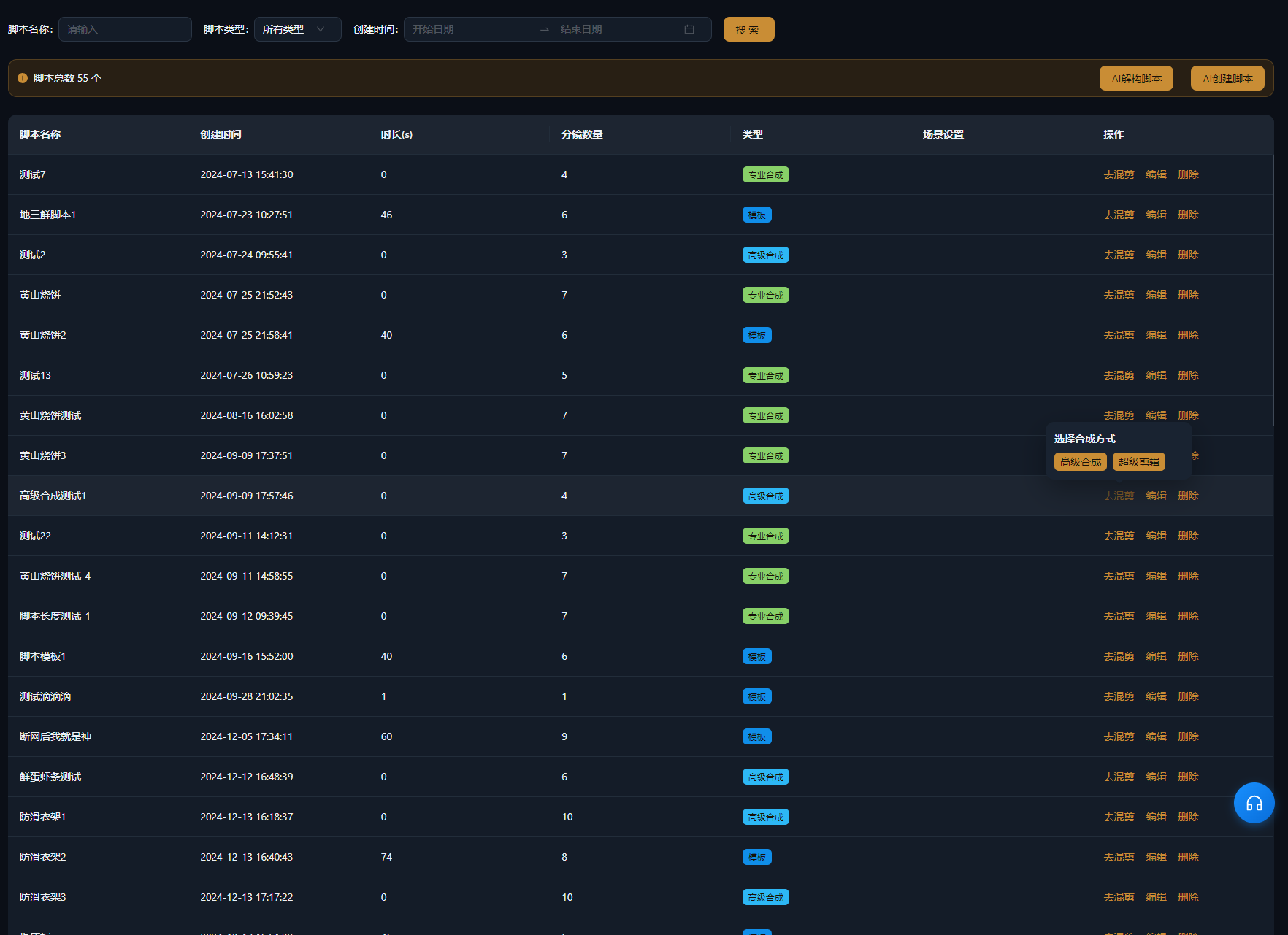
Once the script is saved to script management, pick the route that fits the project:
One-click voiceover for audio first
Pick a voice and export in one click. Scene-by-scene export keeps filenames aligned with scenes for easy syncing.
Scene groups + batch editing
Import the script into the editor’s storyboard track; scene groups are created by name and duration. Drop footage into each group, pair audio and captions, and batch-edit multiple versions at once.
AI film generation matches footage
Give the copy and AI film generation maps library footage onto the timeline with automatic voiceover and captions — for cut-heavy content with plenty of footage.
Pair with deconstruction and prompt conversion
AI script creation isn’t a lone feature — the inspiration toolbox works as a set:
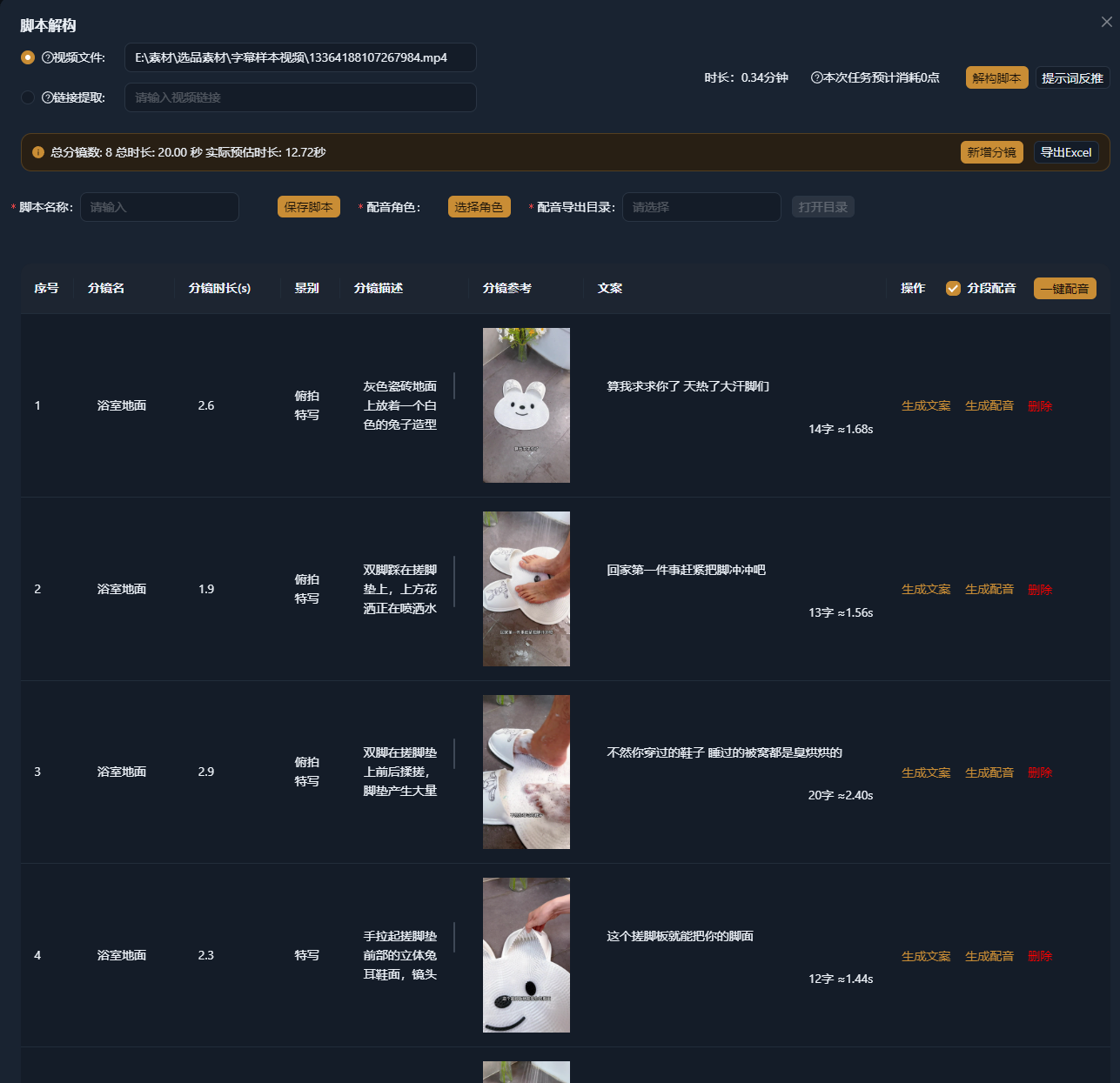
Script deconstruction
Feed in a reference video and deconstruct its structure, copy and hooks — see why it works before you write.
AI script creation
Generate your own script on the deconstructed structure: same skeleton, different product, audience and selling points.
Video to prompt
When you want to echo a reference video’s visual approach, generate the prompts your AI video model needs.
Keep control of the final edit
From a blank page to a working draft
The script decides structure and pacing — and is where most teams stall. AI delivers a first version built around your structure and storyboard requirements, so you focus on selling points, phrasing and brand voice.
Edit the table, don’t regenerate
The output is an editable storyboard: change copy, retime scenes, add or remove rows, with totals updating live. Save when it reads right.
Scripts flow into voiceover and editing
Generate the voiceover in one click, import scripts straight into the editor’s scene groups, and keep voiceover, captions and footage matching in one workflow.
Pair it with script deconstruction
Deconstruct a reference video to see its structure and hooks first, then have AI generate your script with a similar structure for your own account.
Frequently asked questions
Can I publish a generated script as-is?
Review it first. The draft gives you structure and copy; before publishing, check product details, pricing and claims against platform rules and advertising regulations. Placeholders like the district name in the example need to be replaced with real details.
What if the structure or length isn’t right?
Two options: make the prompt more specific — exact structure, scene count, per-scene duration and copy length — and regenerate; or simply edit the storyboard, adding, removing and retiming scenes before saving. No need to start over.
How does a script become a video?
Choose per project: generate the one-click voiceover for audio and captions; import the script into the editor’s scene groups and batch-edit with your own footage; or hand it to AI film generation to match footage from your library with automatic voiceover and captions.
How long does one script take?
Usually tens of seconds. The five examples on this page took 15–18 seconds each; editing starts right in the storyboard once generation finishes.
Does generating a script use credits?
AI script generation follows the AI chat credit rules; analysis features such as script deconstruction are billed separately. The exact cost is shown in the app before each run.
How many scripts can I save?
The number of saved scripts depends on your account tier. When you reach the limit, clean up old scripts or upgrade; exported Excel files and audio stay on your disk and are unaffected.
Ready to try it? Download the AIMIX desktop app, open “Script management → AI script creation” and enter your video description. For the full feature walkthrough see the AI script generation page.