
Impor video
Bawa video yang membutuhkan subtitle ke Generasi Subtitle: klip talking-head, remix jadi, dan rekaman kursus semuanya bisa, serta tugas batch memproses beberapa sekaligus.
AI Mengenali Sulih Suara dan Mengalibrasi Lini Masa Subtitle Secara Otomatis
AI mengenali ucapan dalam video Anda dan menghasilkan subtitle secara otomatis, selaras kalimat demi kalimat tanpa pengaturan waktu manual. Pengenalan multibahasa, templat gaya, dan penyesuaian posisi sudah tersedia, tugas batch menangani beberapa video sekaligus, dan subtitle yang dihasilkan langsung jatuh ke lini masa untuk penyetelan halus.
Unduh AIMIXVideo pendek tanpa subtitle langsung digulir lewat begitu penonton melewatinya dalam kondisi bisu—subtitle kini adalah kebutuhan dasar. Namun pengaturan waktu manual adalah langkah paling membosankan dari alur kerja: dengar satu kalimat, ketik satu kalimat, sinkronkan satu tanda waktu. Generasi Subtitle menyerahkannya ke AI: ia mengenali ucapan dalam video, menghasilkan subtitle yang selaras kalimat demi kalimat, mengalibrasi lini masanya, dan setelah templat gaya singkat Anda siap mengekspor. Subtitle untuk satu video menyusut dari setengah jam menjadi satu menit.
Bawa video yang membutuhkan subtitle ke Generasi Subtitle: klip talking-head, remix jadi, dan rekaman kursus semuanya bisa, serta tugas batch memproses beberapa sekaligus.
AI mengenali ucapan, menghasilkan teks subtitle, dan mengatur waktunya otomatis pada pemenggalan kalimat—setiap baris subtitle mulai dan berakhir serempak dengan suaranya, tanpa perlu penyelarasan manual.
Pilih templat gaya subtitle dan sesuaikan font, warna, outline, serta posisi (tengah, bawah, atau area aman judul). Begitu tampilannya pas, ekspor—atau masuk ke lini masa untuk penyempurnaan lebih lanjut.
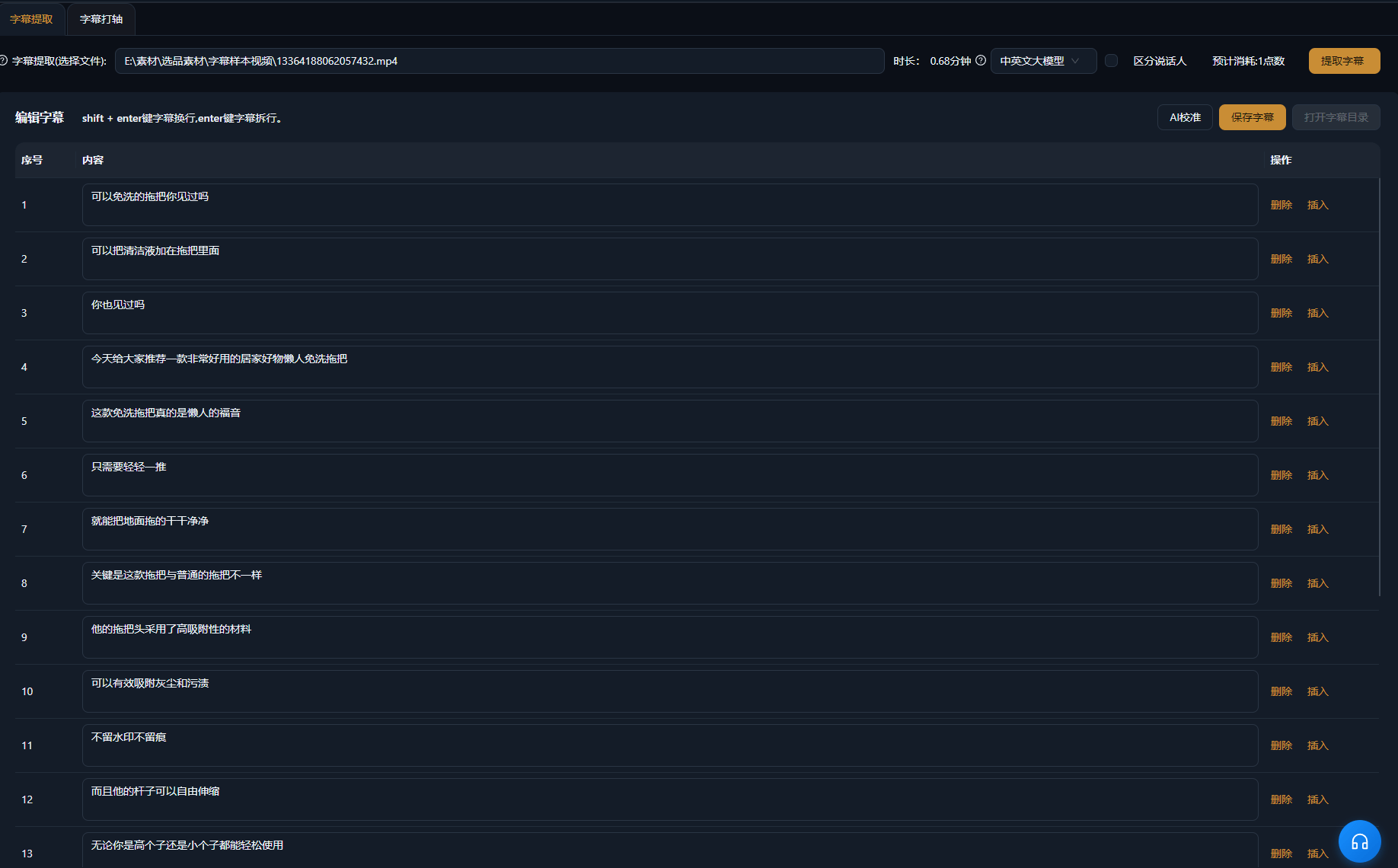
Kasus di bawah ini adalah catatan penggunaan nyata fitur ini di aplikasi AIMIX, tanpa diedit.
Cocok untuk: talking-head edukasi, video penjualan · video jadi yang butuh subtitle cepat
结构Alur kerja: video talking-head jadi → AI membuat dan mengatur waktu subtitle → terapkan templat gaya → ekspor
Setelah memotong video talking-head, subtitle adalah tugas terakhir yang tersisa. Masukkan ke Generasi Subtitle: AI mengenali ucapannya, menghasilkan subtitle baris demi baris, dan menyelaraskan lini masa secara otomatis—terapkan templat gaya yang cocok dengan kanal Anda dan ekspor langsung. Setengah jam pengaturan manual menjadi satu menit kerja, dan satu proses batch mencakup semua video yang Anda unggah hari ini.
Setiap platform condong ke tampilan subtitle yang berbeda:
i
i
i
Pilih satu templat subtitle bawaan untuk kanal Anda dan pakai ulang di setiap video agar tampilannya konsisten.
Titik masuk dan keluar subtitle selaras dengan suara baris demi baris, memangkas pengaturan waktu manual yang paling menyita waktu.
Tidak perlu lagi satu per satu—tugas batch menyelesaikan subtitle semua video hari ini dalam satu proses.
Font, warna, outline, dan posisi tersedia sebagai templat, menjaga gaya subtitle konsisten dengan identitas kanal Anda.
Pengenalan AI menghabiskan poin berdasarkan durasi video, seperti ditampilkan di aplikasi; estimasi biaya ditampilkan sebelum generasi dimulai.
Sulih suara lisan yang jernih mencapai akurasi tinggi; untuk konten kaya istilah khusus, pemeriksaan singkat setelah generasi disarankan.
AI mengatur waktu subtitle otomatis pada pemenggalan kalimat, dan sebagian besar kasus tak perlu penyesuaian; pemenggalan yang janggal bisa dirapikan di lini masa.
Mandarin, Inggris, dan lebih banyak bahasa dikenali dan diubah menjadi subtitle yang sesuai; daftar bahasa pasti mengikuti aplikasi.
Ya. Font, ukuran, warna, outline, dan posisi semuanya bisa disesuaikan, dan bisa disimpan sebagai templat untuk dipakai ulang.
Pembakaran subtitle ke dalam video hasil ekspor didukung; ekspor file subtitle tersendiri bergantung pada versi aplikasi saat ini.