
Synchronisation des sous-titres : alignez chaque ligne sur la timeline, avec traitement par lots et calibrage IA
Author
Date Published

Vous avez un brouillon bilingue traduit ou une transcription de voix off nettoyée — écrire les sous-titres n'est pas la partie difficile. Faire apparaître chaque ligne au moment exact l'est : glisser les sous-titres un par un transforme quelques minutes de vidéo en une demi-heure de travail. La synchronisation des sous-titres confie cela aux outils de timeline : déplacez chaque ligne pour un alignement précis, ou laissez l'IA caler les points de synchronisation sur la parole — ligne par ligne, les sous-titres n'arrivent jamais trop tôt ni ne traînent.
À retenir
- Alignement précis ligne par ligne
- Le calibrage IA fait gagner du temps
- Traitez des ensembles entiers par lots
Comment ça marche
Importez la vidéo et le texte des sous-titres
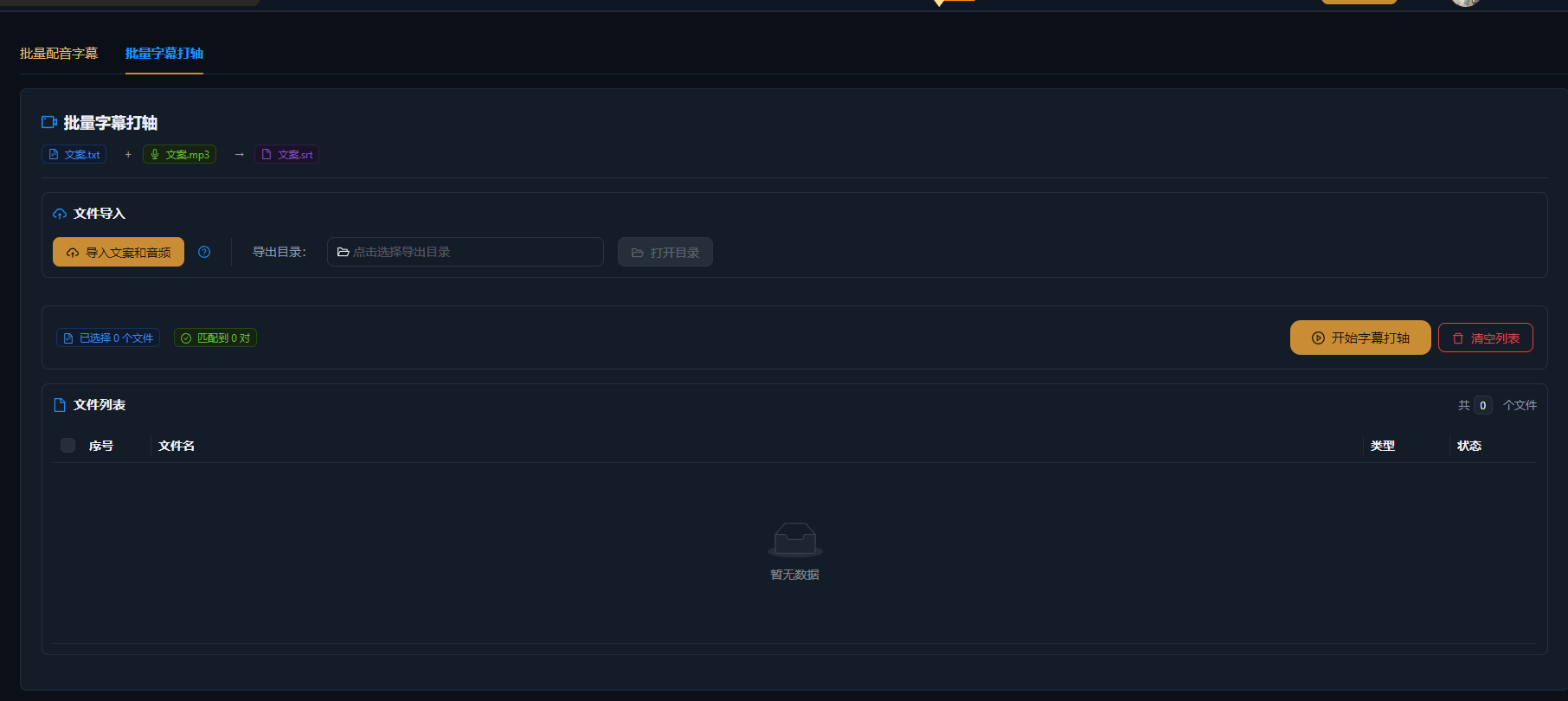
Amenez ensemble la vidéo et le brouillon de sous-titres dans la synchronisation des sous-titres : collez votre propre texte ou utilisez les résultats de l'extraction de texte. Plusieurs vidéos peuvent être importées par lots, une seule tâche couvrant tout l'ensemble.
Synchronisation et calibrage IA
Glissez les sous-titres en place sur la timeline ligne par ligne ; avec le calibrage IA activé, le système apparie automatiquement les points d'entrée et de sortie de chaque sous-titre à la parole — phrases longues et débits rapides restent précis, et un écart isolé ne demande qu'un léger ajustement manuel.
Vérifiez et exportez
Prévisualisez la synchronisation entre sous-titres et parole ligne par ligne, ajustez des points isolés et exportez ; les sous-titres finis peuvent se poursuivre dans Super Edit, ou s'exporter avec la vidéo terminée.
Exemples concrets
Les cas ci-dessous sont des enregistrements réels de cette fonction dans l'application AIMIX, non modifiés.
Sous-titres bilingues : posez sur la timeline des brouillons traduits sans horodatage
Idéal pour : versions multilingues de vidéos face caméra et de cours · brouillons traduits nécessitant un alignement ligne par ligne
Déroulé : vidéo source + brouillon de sous-titres traduit → le calibrage IA cale chaque ligne → ajustements et export des sous-titres bilingues
Les brouillons sans horodatage sont calés vite quand même · L'IA calibre les points d'entrée et de sortie depuis la parole · Traitez par lots tout un ensemble de vidéos traduites
Envoyez le script de voix off en traduction et vous récupérez du texte brut sans horodatage — le dernier kilomètre des sous-titres bilingues est tout une affaire de calage. Importez par lots les vidéos et brouillons traduits dans la synchronisation des sous-titres, laissez l'IA caler chaque ligne sur la parole, contrôlez ponctuellement à la main, et les sous-titres bilingues de dizaines de vidéos sont prêts en une demi-journée.
Quand la synchronisation des sous-titres est nécessaire
La génération de sous-titres gère la transcription ; la synchronisation des sous-titres gère l'alignement :
P
o
A
c
T
â
Si la vidéo n'a pas encore de transcription, lancez d'abord l'extraction de texte pour obtenir le script, puis passez à la synchronisation pour l'alignement — les deux étapes s'enchaînent sans heurt.
Gardez le contrôle du montage
Alignement précis ligne par ligne
Les sous-titres suivent la parole — jamais en avance, jamais en retard — au niveau de finition des sorties professionnelles.
Le calibrage IA fait gagner du temps
Fini le glissement de sous-titre en sous-titre : l'IA calibre les points d'entrée et de sortie depuis la parole, et vous n'ajustez que les exceptions.
Traitez des ensembles entiers par lots
Plusieurs vidéos sont synchronisées en une tâche, déployant les sous-titres en masse pour les matrices de comptes et les versions multilingues.
Questions fréquentes
Quelle différence entre synchronisation et génération de sous-titres ?
La génération de sous-titres transcrit les sous-titres depuis la parole ; la synchronisation des sous-titres aligne sur la timeline, ligne par ligne, un texte que vous avez déjà — elle résout le problème d'alignement.
Le calibrage IA coûte-t-il des points ?
Le calibrage IA mobilise l'analyse IA et consomme des points par tâche, comme indiqué dans l'application ; la synchronisation purement manuelle ne coûte rien.
Quelle est la précision du calibrage IA ?
Un contenu parlé clair comme les vidéos face caméra et les cours atteint une grande précision ; quand une parole rapide ou des phrases longues dérivent, un léger ajustement manuel des points isolés suffit.
Combien de vidéos un lot peut-il traiter ?
Les tâches par lots sont prises en charge ; la limite exacte suit l'application. Gardez chaque lot à une taille contrôlable et avancez lot par lot.
Les sous-titres finis peuvent-ils être exportés ?
Oui. Les résultats de synchronisation s'exportent avec la vidéo ou se poursuivent dans Super Edit, en s'associant à la traduction pour produire des sous-titres bilingues.
Quels formats de sous-titres sont pris en charge ?
Les formats de sous-titres courants sont pris en charge à l'import comme à l'export ; consultez l'application pour la liste complète — coller du texte brut sur la timeline fonctionne aussi.