
Altyazı Üretimi: AI Seslendirmeyi Tanır ve Altyazı Zaman Çizelgesini Otomatik Kalibre Eder
Author
Date Published

Altyazısız kısa video, izleyici sessiz modda kaydırırken geçer gitmiş sayılır — altyazı artık asgari gerekliliktir. Ama elle zamanlama iş akışının en yorucu adımıdır: bir satır dinle, bir satır yaz, zaman damgası eşle. Altyazı Üretimi bunu AI'ya devreder: videodaki konuşmayı tanır, cümle cümle hizalı altyazılar üretir, zaman çizelgesini kalibre eder; hızlı bir stil şablonundan sonra dışa aktarmaya hazırsınız. Bir videonun altyazısı yarım saatten bir dakikaya iner.
Önemli noktalar
- Zaman çizelgesi otomatik kalibre edilir
- Birden fazla video için toplu üretim
- Tek tıkla stil şablonları
Nasıl çalışır
Videoları içe aktarın
Altyazı gerektiren videoları Altyazı Üretimi'ne getirin: karşılıklı konuşma klipleri, bitmiş remikslar ve kurs kayıtlarının hepsi çalışır; toplu görevler birkaçını aynı anda işler.
AI üretimi ve kalibrasyon
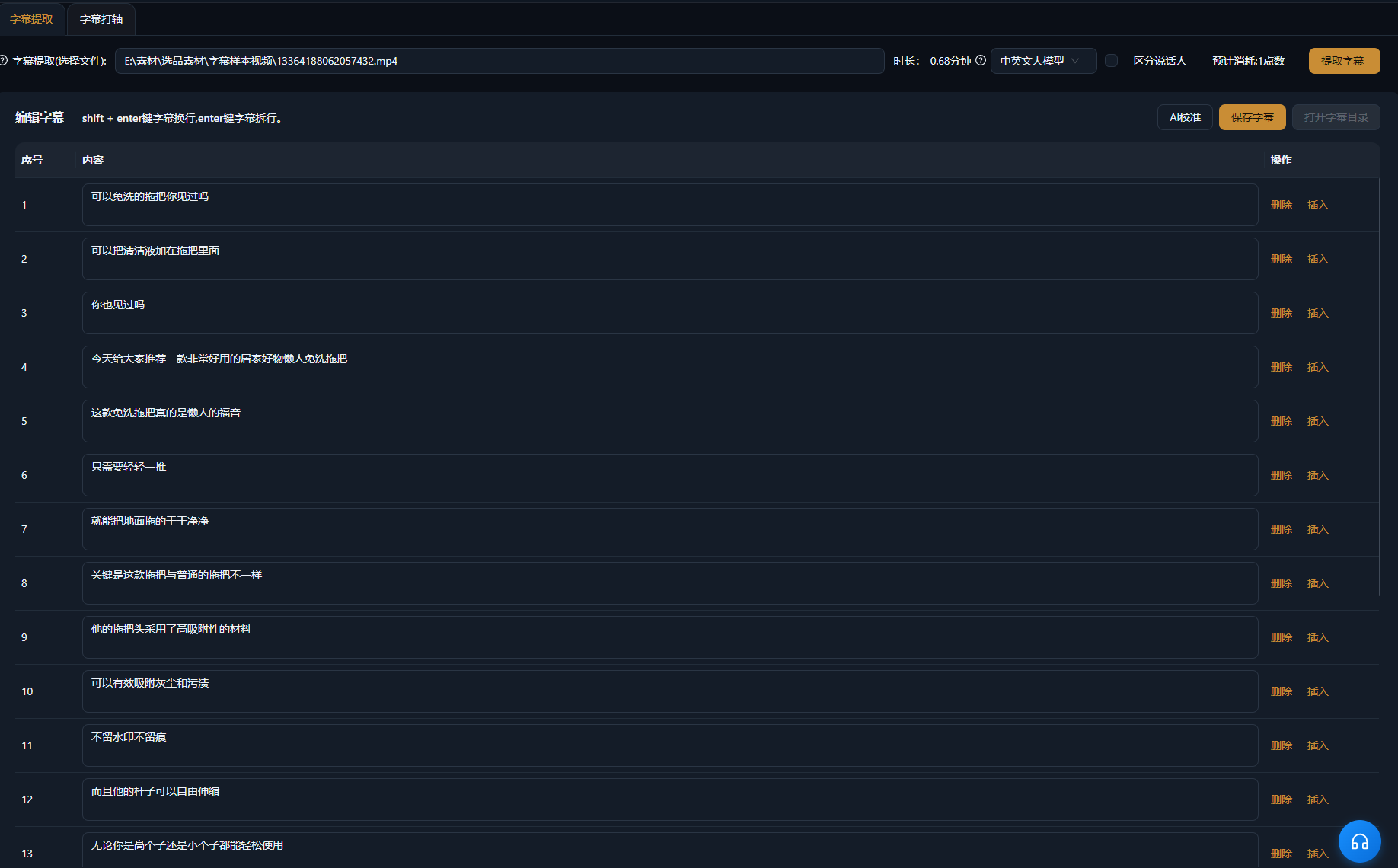
AI konuşmayı tanır, altyazı metnini üretir ve cümle sonlarında otomatik zamanlar — her altyazı satırı sesle eşzamanlı başlar ve biter; elle hizalama gerekmez.
Stil uygulayın ve dışa aktarın
Bir altyazı stil şablonu seçin; yazı tipi, renk, kontur ve konumu (orta, alt ya da güvenli başlık alanı) ayarlayın. Doğru görününce dışa aktarın — ya da daha fazla cila için zaman çizelgesine geçin.
Gerçek örnekler
Aşağıdaki vakalar, AIMIX uygulamasında bu özelliğin gerçek ve düzenlenmemiş kullanım kayıtlarıdır.
Bitmiş karşılıklı konuşma videoları: bir dakikada tam altyazı seti
En uygun olduğu yer: bilgi karşılıklı konuşmaları, satış videoları · hızlı altyazı gerektiren bitmiş videolar
İş akışı: bitmiş karşılıklı konuşma videosu → AI altyazı üretir ve zamanlar → stil şablonu uygula → dışa aktar
Zaman çizelgesi sese otomatik hizalanır · Stil şablonları tek tıkla uygulanır · Toplu görevler birden fazla videoyu yönetir
Bir karşılıklı konuşma videosunu kestikten sonra geriye son iş olarak altyazı kalır. Onu Altyazı Üretimi'ne bırakın: AI konuşmayı tanır, altyazıları satır satır üretir ve zaman çizelgesini otomatik hizalar — kanalınıza uyan bir stil şablonu uygulayın ve doğrudan dışa aktarın. Yarım saatlik elle zamanlama bir dakikalık iş olur ve tek bir toplu çalıştırma bugün yayınladığınız her videoyu kapsar.
Altyazı stili nasıl seçilir
Her platform farklı bir altyazı görünümüne meyillidir:
S
a
B
i
Ç
o
Kanalınız için bir varsayılan altyazı şablonu seçin ve görünüm tutarlı kalsın diye her videoda yeniden kullanın.
Kurgu üzerinde kontrolü sürdür
Zaman çizelgesi otomatik kalibre edilir
Altyazı giriş ve çıkış noktaları sesle satır satır hizalanır; en zaman alan elle zamanlama ortadan kalkar.
Birden fazla video için toplu üretim
Artık tek tek değil — toplu görevler günün her videosunun altyazısını tek çalıştırmada bitirir.
Tek tıkla stil şablonları
Yazı tipi, renk, kontur ve konum şablon olarak gelir; altyazı stili kanal kimliğinizle tutarlı kalır.
Sık sorulan sorular
Altyazı üretimi puan harcar mı?
AI tanıma, uygulamada gösterildiği gibi video süresine göre puan harcar; üretim başlamadan önce tahmini maliyet görüntülenir.
Üretilen altyazılar ne kadar doğru?
Net konuşulan seslendirmede yüksek doğruluğa ulaşır; özel isim yoğunluklu içerikte üretimden sonra hızlı bir proofread önerilir.
Zaman çizelgesinin elle ayarlanması gerekir mi?
AI altyazıları cümle sonlarında otomatik zamanlar; çoğu durumda ayar gerekmez; nadir bir kırılma zaman çizelgesinde incelenebilir.
Hangi diller destekleniyor?
Çince, İngilizce ve daha fazla dil tanınır ve eşleşen altyazılara dönüştürülür; kesin dil listesi uygulamayı izler.
Altyazı stilini özelleştirebilir miyim?
Evet. Yazı tipi, boyut, renk, kontur ve konum ayarlanabilir; yeniden kullanım için şablon olarak kaydedilebilir.
Altyazılar ayrı dosya olarak dışa aktarılabilir mi?
Altyazıları videoya gömmek desteklenir; bağımsız altyazı dosyası dışa aktarma, uygulamanın güncel sürümüne bağlıdır.